How to Chat With Your SQL Data Using ChatGPT (Step-by-Step)
Connect ChatGPT to your SQL database with Draxlr's MCP server and ask questions in plain English. Setup steps, example prompts, per-customer access, and safety.
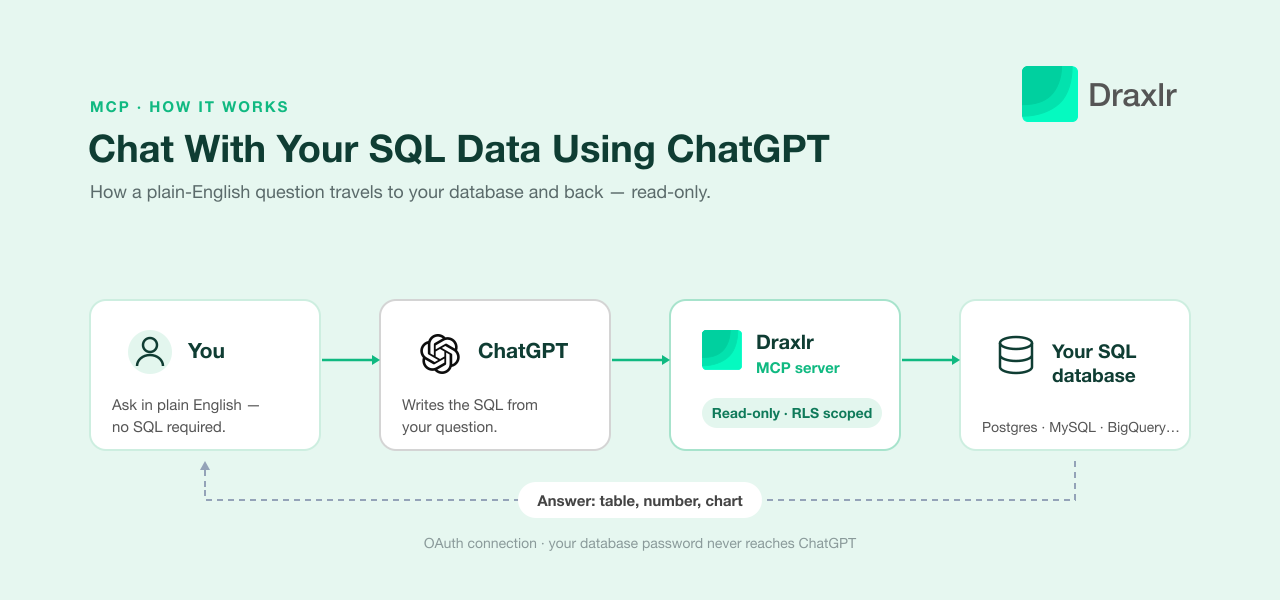
To chat with your SQL data using ChatGPT, add an MCP (Model Context Protocol) server that can reach your database as a custom app in ChatGPT, turn it on in a conversation, and ask your question in plain English. ChatGPT picks the right tool, writes the SQL, runs it against your live data, and replies with a table, a number, or a chart. With Draxlr's MCP server, setup takes one URL and one sign-in, and every query is read-only.
This guide covers what you need, the exact steps in ChatGPT, prompts to try first, and how to give each of your customers ChatGPT access to only their own data.
Key Takeaways
- You connect ChatGPT to your SQL database once, by adding
https://api.draxlr.com/mcpas a custom app in Developer mode and signing in to Draxlr. After that you ask questions in plain English.- Custom MCP apps in ChatGPT need Developer mode, which OpenAI offers on Plus, Pro, Business, Enterprise, and Education plans on the web (OpenAI Developer mode docs, 2026). On Business and Enterprise workspaces an admin has to turn it on first.
- The connection is read-only. Only
SELECTqueries run, and the Draxlr server rejects write statements, so ChatGPT can't change or delete your data.- Your database password never reaches ChatGPT. ChatGPT talks to Draxlr over OAuth, and Draxlr holds the encrypted database connection.
- Row-level security lets you hand the same ChatGPT access to customers: each one signs in with their own account and only sees their own rows.
- ChatGPT passed 900 million weekly active users in February 2026 (Search Engine Land, 2026), so for many teams it's already the chat window people have open.
What do you need to connect ChatGPT to a SQL database?
You need three things: a ChatGPT plan that supports Developer mode, a database that an MCP server can reach, and about five minutes. ChatGPT never stores your database credentials. It calls the MCP server, and the server holds the database connection, so you never paste a connection string into a chat.
With Draxlr, that looks like this:
- A ChatGPT account with Developer mode. It's available on Plus, Pro, Business, Enterprise, and Education plans in the web app. On a Business or Enterprise workspace, an admin or owner enables Developer mode for the workspace.
- Your database connected to Draxlr. Draxlr works with PostgreSQL, MySQL, SQL Server, MariaDB, ClickHouse, Snowflake, BigQuery, Redshift, Databricks, and more. You add it once with host, port, database name, and a read-only user. Draxlr's database credentials guide lists the exact fields for each provider.
- A remote HTTPS endpoint. ChatGPT only connects to MCP servers over HTTPS, not to a local server running on your laptop. Draxlr's server is hosted at
https://api.draxlr.com/mcp, so there's nothing to deploy.
How to Chat With Your SQL Data Using ChatGPT in 5 Steps
Here's the whole setup. If you'd rather watch it, the video below shows the same flow end to end, including how per-customer access works.
Step 1: Connect your database to Draxlr
Sign in to Draxlr and add your SQL database if you haven't already. Use a read-only database user where you can. Draxlr already rejects writes, and a read-only user adds a second lock at the database itself. Draxlr encrypts the credentials and keeps the connection, so ChatGPT never sees them.
Step 2: Turn on Developer mode in ChatGPT
In ChatGPT on the web, open Settings and turn on Developer mode. OpenAI has moved this toggle a few times. It's listed under Security and login in current builds and under Apps (formerly Connectors) → Advanced settings in older ones. If you're on a Business or Enterprise workspace and don't see it, ask a workspace admin to enable it.
ChatGPT shows a warning when you turn it on. That's expected. Developer mode lets you connect any MCP server, so OpenAI asks you to trust only the ones you know.
Step 3: Create a Draxlr app with the MCP server URL
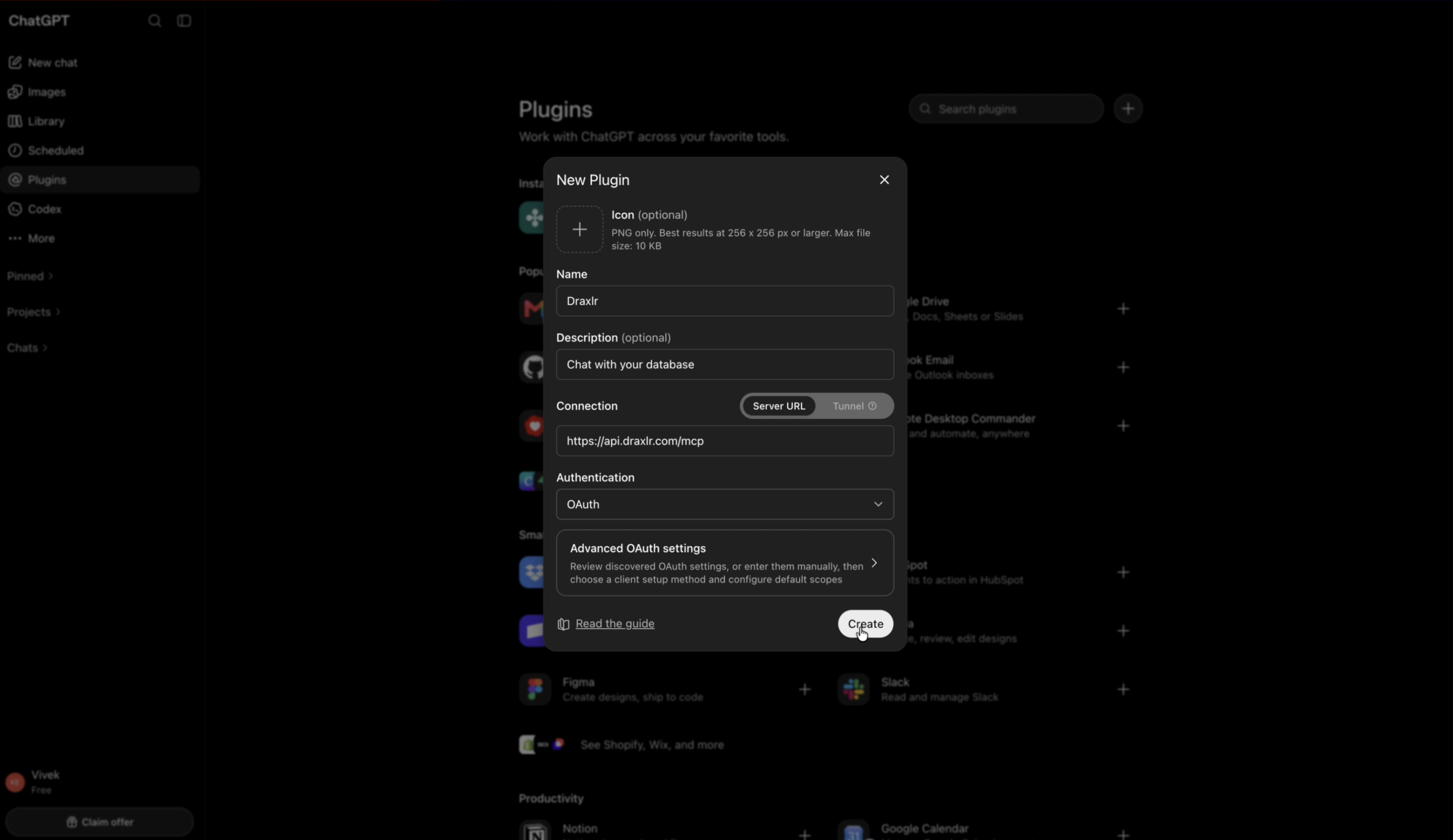
Click Plugins in the ChatGPT sidebar (called Settings → Apps on older builds), then click the + button at the top right. In the New Plugin dialog, fill in:
- Name: Draxlr
- Description (optional): Chat with your database
- Connection: choose Server URL and enter:
https://api.draxlr.com/mcp
- Authentication: OAuth
Click Create. You can leave Advanced OAuth settings alone, because ChatGPT finds Draxlr's OAuth settings on its own. You don't need to copy an API key either.
Step 4: Sign in to Draxlr to authorize ChatGPT
ChatGPT opens a Draxlr sign-in window. Log in, approve the request, and the connection is done. ChatGPT can now call Draxlr's tools: list databases, read a schema, run a query, save it, add it to a dashboard, and export results. It never gets your database password or connection string.
Step 5: Enable Draxlr in a chat and ask your question
Start a new chat, open the + menu in the message box, choose Developer mode, and tick Draxlr. Then ask in plain English:
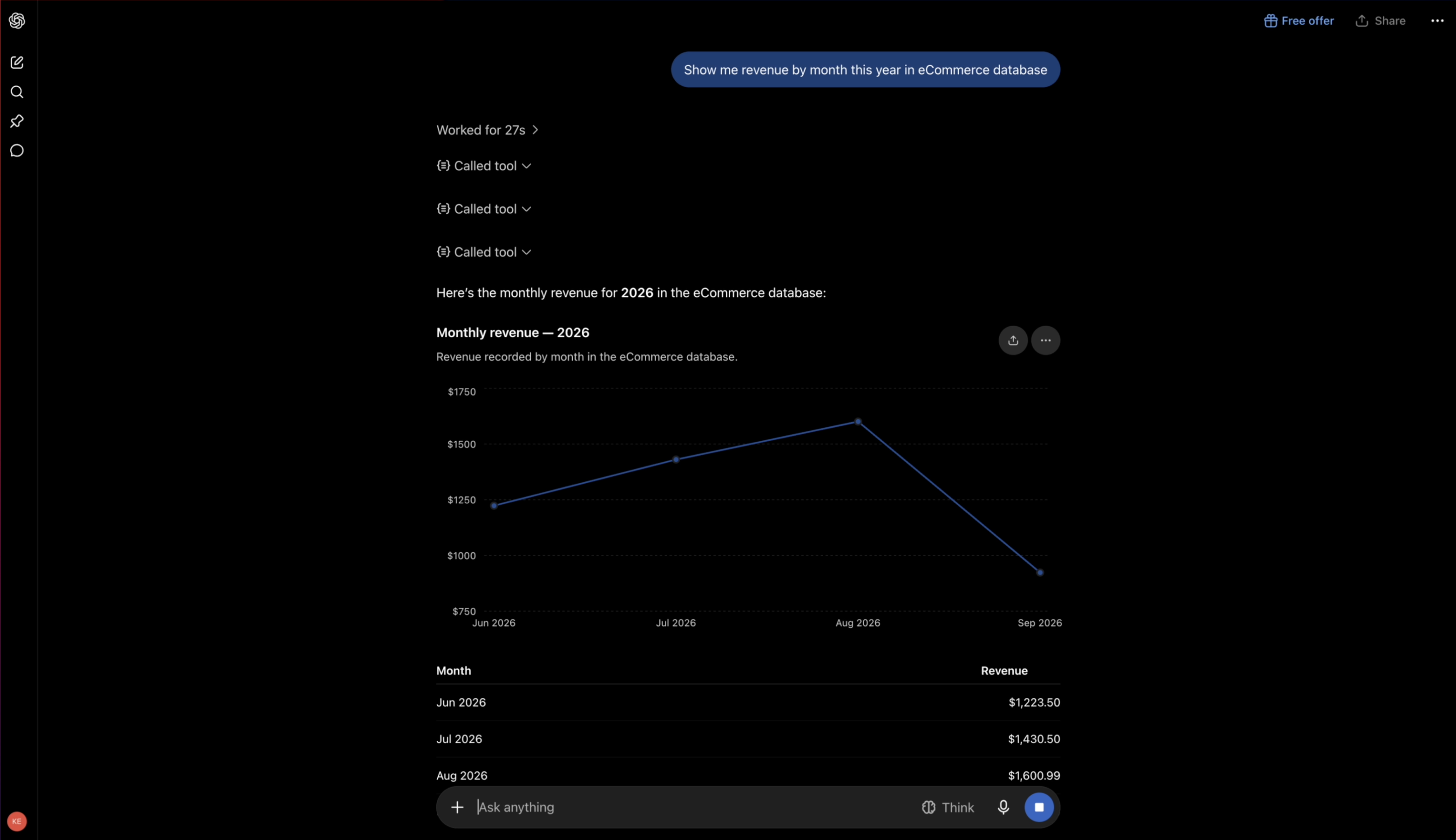
"Show me revenue by month this year in eCommerce database"
ChatGPT calls Draxlr, which reads your schema, writes the SQL, runs it read-only against your live database, and returns the rows. ChatGPT turns them into a table or chart with a short summary. Ask a follow-up like "now split that by country" and it keeps drilling in from there.
Naming the tool in your prompt helps. "Use Draxlr to…" tells ChatGPT to query your database rather than answer from general knowledge or the web. For the engineering detail behind servers like this, see the technical architecture behind MCP SQL integrations.
What can ChatGPT do with your database once it is connected?
Once ChatGPT is connected through Draxlr's MCP server, it can do more than answer one question. From the same chat it can write and run read-only SQL, find existing queries and dashboards, save a new query, pin it to a dashboard, and export the results. Each action returns a Draxlr link, so someone who never opens ChatGPT can still use the result.
| Ask ChatGPT to… | What Draxlr does |
|---|---|
| Explore what's there | Lists your connected databases and returns the tables and columns ChatGPT should use. |
| Answer a question | Runs the generated SQL read-only and returns the rows for ChatGPT to summarize or chart. |
| Reuse existing work | Searches your saved queries and dashboards by name and reruns them. |
| Save and share | Stores the question as a named saved query and adds it to a dashboard as a live widget. |
| Export | Produces a CSV or Excel file for a query, or an Excel or PDF of a whole dashboard. |
Saving a query or adding it to a dashboard creates something in Draxlr, so ChatGPT may ask you to confirm before it runs that step. Queries against your database stay read-only either way. This is the workflow Draxlr's AI SQL tool is built around.
Example Prompts to Try First
Start with the questions you'd normally send to whoever knows SQL on your team:
- "Use Draxlr: what were our top 10 products by revenue last quarter?"
- "Which subscription plan has the highest churn in the first 30 days?"
- "Chart weekly signups for the last 3 months."
- "How many trial users converted to paid last month, by signup source?"
- "List customers who haven't logged in for 60 days or more, with their plan."
Then keep going in the same chat:
- Save it: "Save that as a query called Weekly Signups."
- Pin it: "Add Weekly Signups to my Growth dashboard." A one-off question becomes a report the whole team checks.
- Export it: "Export those results to Excel." Whole dashboards export to PDF the same way.
A question you asked once becomes a saved query the next person can rerun. If you want to go further, see how to build a SQL dashboard with AI.
How do you give customers ChatGPT access to only their own data?
With row-level security (RLS) on the MCP server, customers can query your database through ChatGPT and still only see their own rows. Each customer signs in to Draxlr with their own account, and Draxlr adds their filter, such as tenant_id = 42, to every query before it runs. ChatGPT never decides who sees what. The server does.
This is the part of the setup most teams don't expect. Normally, letting a customer ask ad-hoc questions about their data means building a reporting feature or exporting CSVs by hand. With RLS in Draxlr you:
- Create a permission that says which tables are visible and which row filter applies, for example
tenant_id = {customer}. - Attach it to a group of external users.
- Set each member's attribute value, like their customer ID.
From then on, a customer who connects ChatGPT to Draxlr and asks "How many orders did we place last month?" gets their own number. If they ask about another customer, the filter returns nothing, because those rows never leave the database. The same scoping applies to dashboards, drill-downs, and exports. The video above shows this with two customers side by side.
Your internal team works the same way. Each teammate creates the Draxlr app in their own ChatGPT account and signs in with their own login. Nobody shares a password, and you can revoke one person without affecting anyone else. See Draxlr's row-level security guide for the setup, or how embedded analytics works if you want the same data inside your product.
Is It Safe to Connect ChatGPT to Your Database?
Yes, if the MCP server enforces the limits instead of trusting the model to follow them. OpenAI labels Developer mode "Elevated risk" and warns that incorrect write actions "can inadvertently destroy, alter, or share data" (OpenAI Developer mode docs, 2026). The fix is a server where ChatGPT has no way to write, not a prompt asking it to be careful.
Draxlr handles that at the server level:
- Read-only by design. Only
SELECTstatements run.INSERT,UPDATE,DELETE, and DDL are rejected by the server, whatever ChatGPT sends. - No credentials in the chat. ChatGPT authenticates to Draxlr with OAuth. The database password stays encrypted in Draxlr and is never exposed to the model.
- Scoped per user. Every query runs with the signed-in person's permissions and RLS filters, so a prompt injection can't widen what they're allowed to see.
- Revocable. Disconnect the app in ChatGPT or remove the user in Draxlr and access stops.
Add a read-only database user on top and there are two independent locks. For how read-only access is enforced, including a case where a popular open-source MCP server got it wrong, see MCP servers and read-only, tenant-aware SQL access.
How to Get Accurate Answers Every Time
AI-written SQL is reliable on simple questions and worth checking on anything that affects money. On the BIRD-SQL text-to-SQL benchmark, the best model reached 0.824 execution accuracy under blind adjudicated review in a 2026 evaluation of 36 models (BIRD-SQL leaderboard; AIMultiple, 2026). That's a ceiling on a curated benchmark, not a guarantee for your schema.
Three habits help:
- Ask to see the SQL. "Show me the query you ran." A quick look catches a wrong join or date range.
- Define your metrics. Say "users with a login in the last 30 days" instead of "active users."
- Check against a number you trust before it goes into a deck or a customer email.
Clear table and column names help too. Schema-aware prompting for text-to-SQL explains why.
What if the Draxlr app doesn't work in ChatGPT?
Most problems come down to plan, mode, or account:
- There's no Developer mode or no + button to create an app. Check your plan and workspace. On Business or Enterprise workspaces an admin has to enable Developer mode. It's also web-only for setup, so use chatgpt.com rather than the mobile app.
- ChatGPT answers without touching your data. Draxlr isn't enabled in that chat. Open + → Developer mode, tick Draxlr, and start your prompt with "Use Draxlr to…".
- The sign-in window closes without connecting. Sign in with the Draxlr account that has the database connected, then retry from Plugins (or Settings → Apps on older builds).
- ChatGPT can't find a table or column. Ask it to "list the databases and tables you can see in Draxlr". The table may be in a different database, or RLS may be hiding it for your account.
- A query times out on a large table. Narrow the date range or ask for a
LIMIT, as you would in any SQL client.
If you're still stuck, Draxlr's MCP client setup guide covers ChatGPT and other clients.
ChatGPT or Claude: Which Should You Use?
Use the one your team already has open. Draxlr's MCP server works the same with both: the same URL, the same read-only tools, and the same RLS. The differences are on the client side.
| ChatGPT | Claude | |
|---|---|---|
| How you add Draxlr | Developer mode → create an app in Plugins with the MCP URL | Add custom connector, or install from the Claude Directory |
| Turning it on per chat | + menu → Developer mode → tick Draxlr | Connector is available once enabled |
| Plans | Plus, Pro, Business, Enterprise, Education | Plans with custom connectors |
| Read-only queries and RLS | Yes, enforced by Draxlr | Yes, enforced by Draxlr |
Using Claude? Follow how to chat with your SQL data using Claude. Comparing tools across the category? Our roundup of the best AI SQL tools covers pricing and features.
Frequently Asked Questions
How do I connect ChatGPT to my SQL database?
Connect your database to Draxlr. In ChatGPT, turn on Developer mode under Settings → Security and login, open Plugins, click + to create an app with the MCP server URL https://api.draxlr.com/mcp and OAuth, then sign in to Draxlr. In a new chat, enable Draxlr from the + menu under Developer mode and ask your question in plain English.
Which ChatGPT plans can connect to a SQL database?
Custom MCP apps need Developer mode, which OpenAI offers on Plus, Pro, Business, Enterprise, and Education plans in the web app. On Business and Enterprise workspaces, an admin or owner has to enable Developer mode before members can create apps.
Do I need to know SQL to chat with my data in ChatGPT?
No. You ask in plain English and ChatGPT writes the SQL, runs it through Draxlr, and returns a table, number, or chart. Knowing SQL helps only if you want to check the query, which you can see by asking "show me the query you ran."
Can ChatGPT change or delete my data?
No. Draxlr's MCP server only runs SELECT queries and rejects write statements at the server, regardless of what ChatGPT sends. Using a read-only database user adds a second lock at the database.
Can my customers use ChatGPT to query only their own data?
Yes. With row-level security in Draxlr, each customer signs in with their own account and a filter such as tenant_id is applied to every query. They can ask anything in ChatGPT and still only get their own rows, in queries, dashboards, and exports.
Does ChatGPT see my database password?
No. ChatGPT connects to Draxlr with OAuth. Draxlr keeps the database credentials encrypted and never passes them to ChatGPT or OpenAI.
Which databases work with ChatGPT through Draxlr?
PostgreSQL, MySQL, SQL Server, MariaDB, ClickHouse, Snowflake, BigQuery, Redshift, Databricks, and more. Any database you connect to Draxlr can be queried from ChatGPT.
Start Chatting With Your SQL Data in ChatGPT
Connect one database, create the Draxlr app in ChatGPT, and have a few people ask real questions for a week. The questions they ask will show you where the value is. The connection is read-only and credentials never leave Draxlr, so trying it carries little risk.
When a question turns out to matter every week, ask ChatGPT to save it and add it to a dashboard. When customers want the same answers, turn on row-level security and give them their own login. Explore Draxlr's AI SQL tool and connect ChatGPT to your data today.
About the author

Vivek is a coder and the founder of Draxlr who cares deeply about building good products. He works at the intersection of AI, SQL, dashboards, and embedded analytics, with a strong focus on making complex data workflows feel simple, useful, and fast for real teams.
If you have questions about anything in this guide, or want to compare options for your specific stack, you can email Vivek at vivek@draxlr.com, try Draxlr free, or reach out directly through the Draxlr team.