Best MSSQL Reporting Tools
Looking for MSSQL reporting tools? Explore the best options for dashboards, analytics, and internal reporting on your Microsoft SQL Server data.

Microsoft SQL Server (MSSQL) is still one of the most widely deployed relational databases in the world. It runs core systems at enterprises, powers SaaS products, and sits behind countless internal tools where teams depend on clean, trustworthy data. But once a business grows past a handful of users, SQL Server Management Studio and ad-hoc T-SQL queries stop being a scalable way to actually see what's happening in your data.
The problem is rarely SQL Server itself — the engine can handle the workload. The problem is access. Developers and DBAs can write queries, but product managers, operations teams, finance, and founders usually cannot. Without a dedicated reporting layer, every data question turns into a Jira ticket, a Slack ping, or an email that pulls engineering off product work, and the dashboards business users asked for last quarter keep slipping.
MSSQL reporting tools solve this by sitting between your database and the people who need answers. They connect directly to your SQL Server instance, provide visual interfaces for exploring data and building dashboards, and help teams get consistent, up-to-date reporting without writing T-SQL by hand every time. In this article, we break down the most reliable MSSQL reporting tools to consider for 2026.
What are MSSQL reporting tools?
MSSQL reporting tools connect directly to your Microsoft SQL Server database and turn live data into dashboards, charts, and shared reports without requiring SQL for every question. Rather than handing out raw database credentials to everyone on your team, these tools provide a controlled interface for querying, visualizing, and distributing data insights built on top of your SQL Server schema.
Modern reporting tools connect to SQL Server over the standard TDS protocol using ODBC, JDBC, or native drivers, which means there is no need for ETL pipelines or data duplication. Queries execute against your actual tables, views, and stored procedures. Data stays live, permissions stay consistent with your existing SQL Server logins and roles, and both technical and nontechnical users can answer their own questions from a single reporting workspace instead of filing requests against your DBA team.
How to choose a MSSQL reporting tool
Choosing the right MSSQL reporting tool depends on what you want to achieve with your data. An enterprise team standardizing on Microsoft will prioritize very different features than a product team that wants to embed analytics for customers or a finance team replacing a legacy BI stack.
Start by identifying your primary goal.
1. If your goal is internal reporting for your team
Pick a tool with strong T-SQL support, an intuitive dashboard builder, and simple sharing. You want clarity without adding another system your DBA team has to babysit. Tools that let nontechnical teammates explore data without writing queries are especially valuable for keeping engineering and database time focused on real product work.
2. If your goal is customer-facing analytics
Look for embedding, white-label controls, and row-level filtering. Your users should see analytics that look like part of your product, not an iframe pasted on top. This requires secure embed tokens and multi-tenant data filtering applied at the query level, not just the UI.
3. If your goal is replacing an existing analytics stack
Prioritize tools with flexible permissions, reusable queries, scheduling, and scalable embedding. These features help you migrate and streamline an entire analytics layer rather than just stacking another tool on top of SQL Server Reporting Services (SSRS) or a dated BI deployment.
4. If your goal is minimal engineering involvement
Pick a tool that lets product, support, finance, or operations teams explore data on their own. Features like visual query builders and AI text-to-SQL reduce the number of ad-hoc requests developers and DBAs get pulled into. The best tools make self-service analytics genuinely accessible to nontechnical teammates working on top of your SQL Server schema.
Ultimately, the right MSSQL reporting tool depends on whether you prioritize speed, customer experience, or long-term scalability.
Key features to look for in MSSQL reporting tools
A quick search for MSSQL analytics or reporting tools will surface plenty of options, but they're not all built the same. Choosing the right one becomes much easier when you know which capabilities matter most for teams working directly on Microsoft SQL Server.
Here are the core features to evaluate when comparing MSSQL reporting tools.
1. Native SQL Server compatibility
Your MSSQL reporting tool should connect directly to SQL Server — whether on-prem, Azure SQL Database, or Azure SQL Managed Instance — without ETL, sync jobs, or schema duplication. Native support means:
- Queries run on your actual schema, views, and stored procedures
- No pipelines or replication required
- No new infrastructure to manage
- Consistent permissions tied to your existing SQL Server logins, roles, and row-level security
Tools that require you to move data into a warehouse first will slow you down and add unnecessary complexity to your stack.
2. Ease of dashboard building
Most teams using SQL Server don't have a dedicated BI department, so reporting has to be accessible. Look for features like:
- Visual query building for nontechnical users
- Text to SQL AI
- Reusable charts and saved queries
- Filters and drilldowns
- Clear layout controls
- Simple sharing via link or embed
The goal is that anyone on your team should be able to answer basic questions without a developer or DBA in the loop.
3. Embeddability (if you want customer-facing dashboards)
If you plan to embed analytics inside your product, choose a tool with:
- Secure, stateless embed tokens
- Row-level filtering for multi-tenant apps
- White-label options
Dashboards should feel native inside your product, not bolted on after the fact. If you're building on SQL Server, see how to embed a MSSQL dashboard in your app for a concrete walkthrough.
4. API access for automation
MSSQL teams often automate workflows like report generation, alerts, scheduled queries, or embedding logic. An API-first reporting tool gives you:
- Programmatic control over dashboards and queries
- Flexibility for future integrations
- Easier connection to your authentication layer
- Automation of recurring reporting tasks
Developers should be able to trigger or manage analytics via API just like any other part of their stack.
5. Data security and access control
Your MSSQL reporting tool must respect the same security expectations your application has. Important features include:
- No data copying or external storage
- User-scoped dashboards and query access
- Secure embedding with filtered views
- Strong team permission controls
- Support for SSL/TLS and enterprise authentication (Microsoft Entra ID, Windows Authentication where relevant)
- Self-host option for sensitive environments
Since everything connects to your live production schema, access control is critical.
6. Documentation, support, and reliability
Reporting is often implemented under pressure, late in the product cycle. Good documentation, responsive support, and a reliable UI save hours of frustration. Whether through docs, Slack communities, or direct support channels, pick a tool that won't leave you stuck when your team needs answers fast.
The best MSSQL reporting tools to consider in 2026
Without further delay, here's a breakdown of the top MSSQL reporting tools worth exploring in 2026 and beyond.
1. Draxlr: Best MSSQL reporting tool for dashboards, team insights, and embedded analytics
Best for
SaaS teams and internal ops teams using Microsoft SQL Server who want a straightforward way to build dashboards, explore data, and offer embedded analytics without introducing a complicated BI stack.
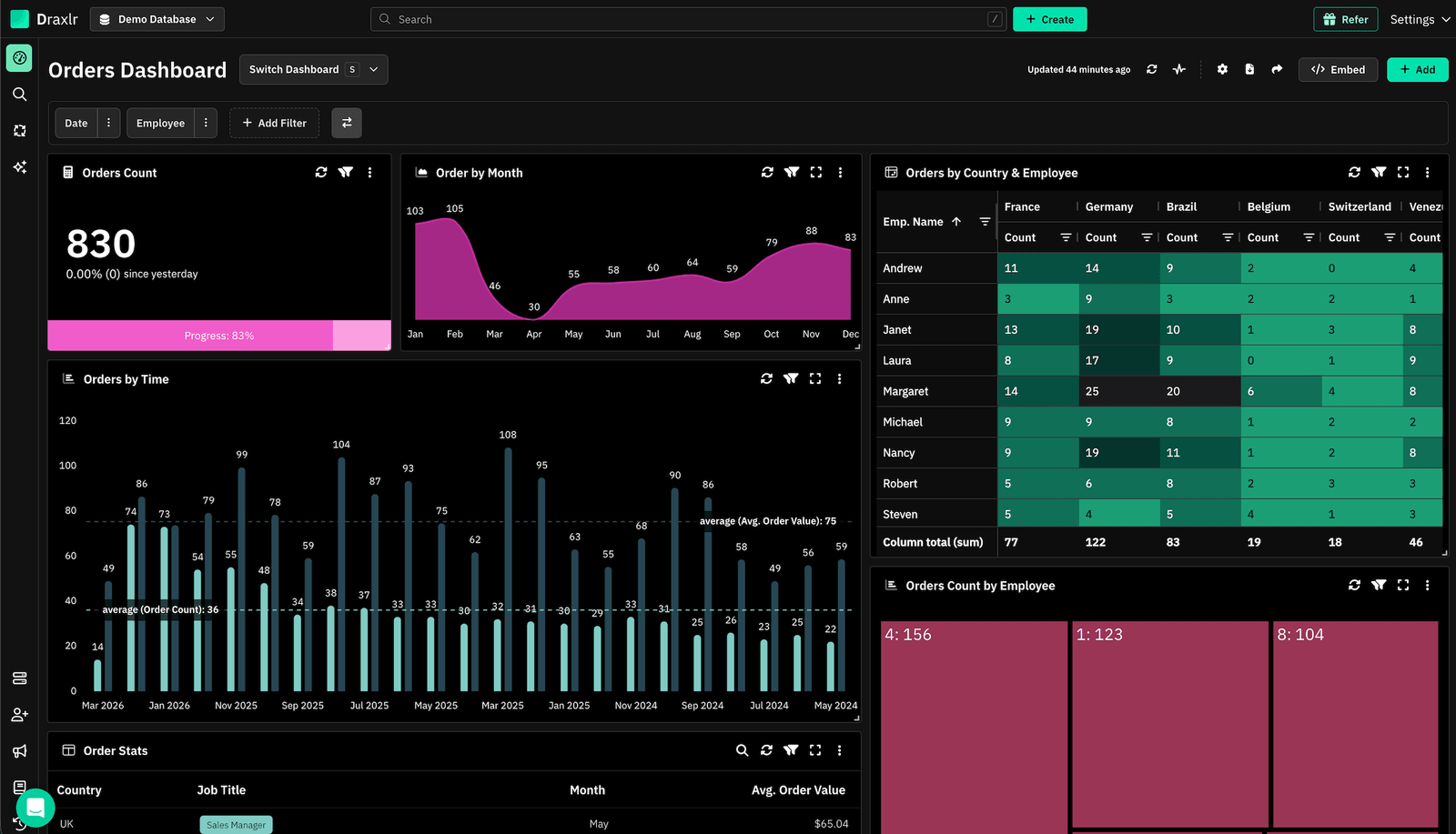
Connect your DatabaseDraxlr works directly with your SQL Server database and gives teams a clean interface for creating reports, running T-SQL, and turning a Microsoft SQL Server database into dashboards without setup overhead. Built for modern product and operations teams, it helps you ship reporting fast — whether the goal is internal visibility or customer-facing analytics.
For technical users, Draxlr offers full SQL control, virtual columns, filters, drill-through features, and database-aware autocomplete that understands your SQL Server schema. For nontechnical teammates, the visual query builder and AI text-to-SQL make data exploration accessible without needing to open SQL Server Management Studio.
If your product includes customer analytics, Draxlr supports secure embedded dashboards with row-level filtering, white-label options, and React and Vue components that integrate naturally into your app. Teams can also automate reporting with scheduled emails, Slack alerts, and CSV, Excel, and PDF exports.
Draxlr runs on your existing SQL Server infrastructure — no pipelines, warehouses, or modeling layers required. Everything connects directly to your live schema, whether SQL Server is on-prem, self-hosted in a VM, or running on Azure SQL Database.
Key features
- Connects directly to Microsoft SQL Server with no ETL or data prep work required
- Visual Query Builder, full SQL editor, and AI Chat for text-to-SQL
- Dashboard builder with filters, drill-through, and virtual columns
- Embedded dashboards with secure tokens, row-level filters, and white-label controls
- React and Vue SDKs for easy in-product analytics
- Export options (CSV, Excel, PDF) and scheduled reports
- Team-level permissions for safe access to production data
- Supports both internal reporting and customer-facing analytics from the same workspace
What users say about Draxlr
Draxlr offers a clean, modern interface and makes it incredibly easy to build dashboards — even for non-technical users. I especially like the visual quality and flexibility of the available graph types. It's intuitive, fast to set up, and has excellent usability from the start. The ability to securely share dashboards via link is a game-changer for our client reporting. — Review from a SaaS Founder on G2
Pricing
Draxlr offers multiple plans depending on team size, embedding needs, and data volume. Pricing starts at $75/month
2. Power BI: Best for organizations already standardized on the Microsoft ecosystem
Best for
Enterprises and mid-market teams that already live inside Microsoft 365, Azure, and Teams and want BI dashboards connected to SQL Server alongside Excel, SharePoint, and other Microsoft services.
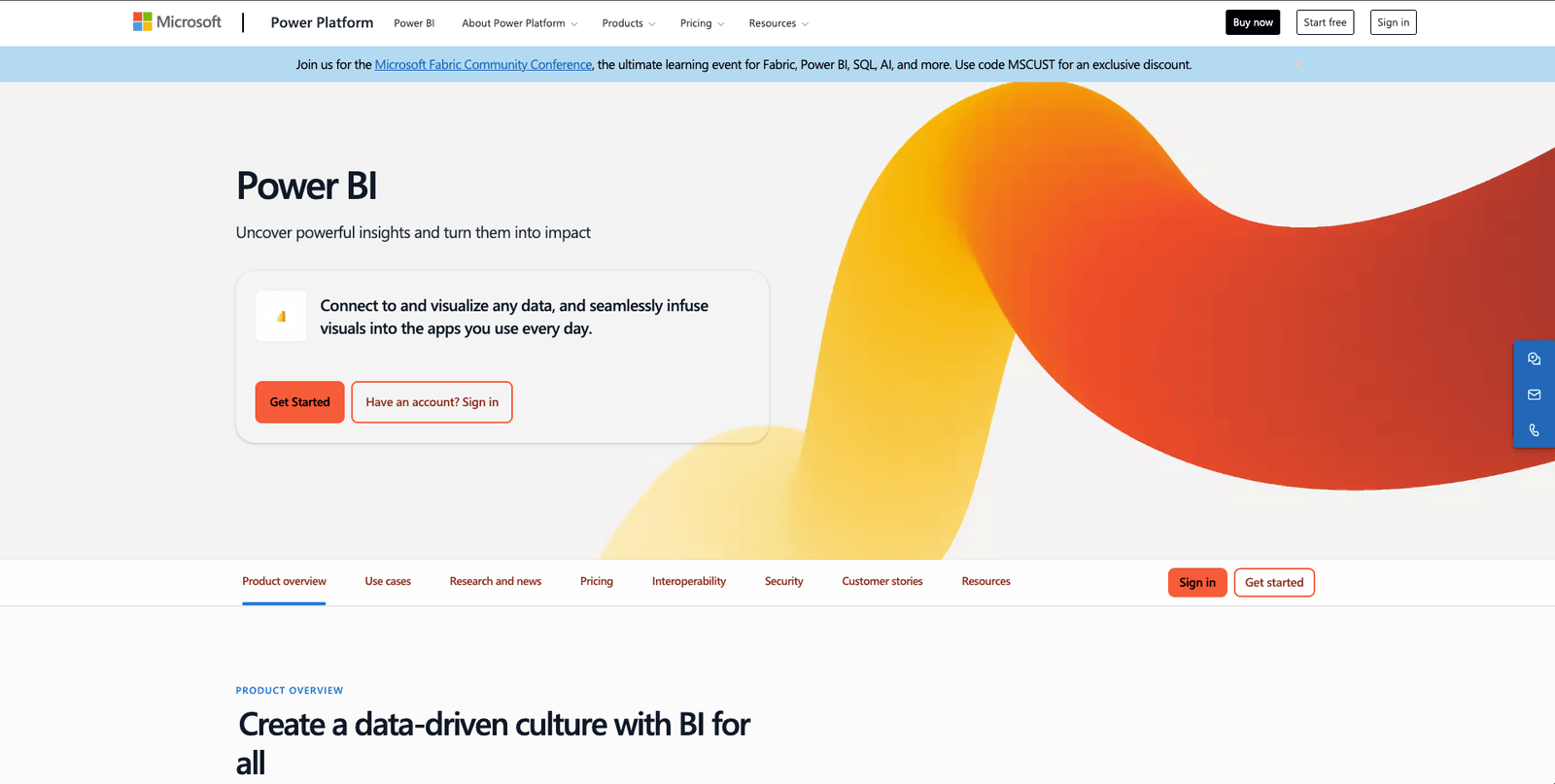
Power BI has the most natural fit with Microsoft SQL Server of any BI tool on this list. The native SQL Server connector supports both Import and DirectQuery modes, and authentication works through Microsoft Entra ID, SQL credentials, or Windows Authentication. For SQL Server Enterprise customers with Software Assurance, Power BI Report Server is included at no additional cost, which makes it a common on-prem reporting choice for regulated industries.
Outside the Microsoft ecosystem, Power BI is less compelling. Its desktop-first workflow, Windows dependency for some features, and premium licensing for embedded analytics can slow down product teams that need fast, lightweight reporting directly from SQL Server. Embedding dashboards in a web product also requires Premium or Embedded capacity licensing and additional configuration that simpler tools handle out of the box.
Key features
- Native SQL Server connector with Import and DirectQuery support
- Advanced DAX modeling with a large library of visualization types
- Deep integration with Microsoft 365, Azure, Teams, and SQL Server Reporting Services
What users say about Power BI
Power BI has transformed the way we approach data by turning complex data into clear real-time insights and actionable strategies. With its powerful visualizations and integration across multiple data sources including SQL Server, I've been able to track performance trends and uncover insights with precision. — Summary of Power BI reviews on G2
Pricing
Power BI Desktop is free. Pro starts at $14/user/month and Premium Per User (PPU) starts at $24/user/month. Premium capacity plans start at $4,995/month for P1.
3. Metabase: Best for teams that want quick, no-code dashboards on SQL Server
Best for
Small to mid-sized teams that want fast self-service reporting on SQL Server with minimal setup and a friendly interface for nontechnical users.
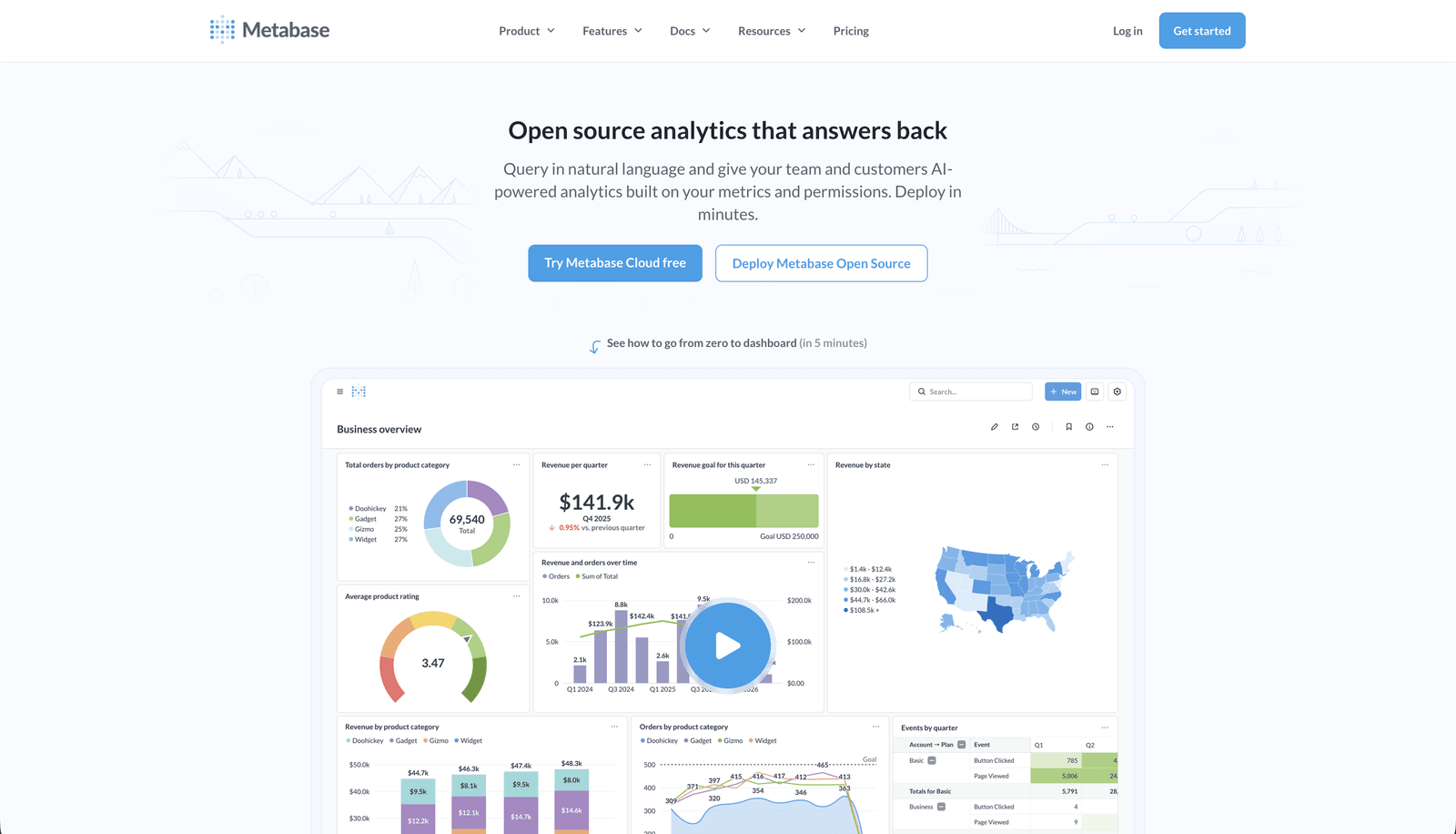
Metabase is one of the most widely adopted open-source BI tools for Microsoft SQL Server. Metabase ships with a native SQL Server driver and supports the oldest supported SQL Server version through the latest stable release, with SSL enabled by default when possible. Setup usually takes a few minutes: point Metabase at the host, port, database, and credentials, and it auto-discovers your schema.
Once connected, Metabase's question-and-answer interface lets users explore data, build charts, and assemble dashboards without writing SQL. It also has a full SQL editor for power users who prefer T-SQL, plus scheduling and email delivery of reports. That said, advanced features like row-level security, SSO, and white-label embedding are only available on paid Cloud plans, which can get expensive as team size grows.
Key features
- Native Microsoft SQL Server driver with out-of-the-box SSL support
- No-code Question Builder and full SQL editor for mixed-skill teams
- Scheduled reports, email delivery, and dashboard subscriptions
What users say about Metabase
Metabase stands out for its simplicity and quick setup. As a data analyst, I appreciated how fast I could connect it to our databases without needing any complex configuration. The no-code query builder is excellent for non-technical users to explore data, create charts, and build dashboards without writing SQL. — Review on G2
Pricing
Open-source self-hosted version is free. Cloud Starter starts at $100/month base plus $6/user/month. Cloud Pro with SSO, row-level security, and embedding starts at $575/month base plus $12/user/month.
4. Tableau: Best for analyst-heavy teams that need advanced visualizations
Best for
Larger organizations with dedicated BI analysts who want deep visual exploration and polished executive dashboards on top of SQL Server.
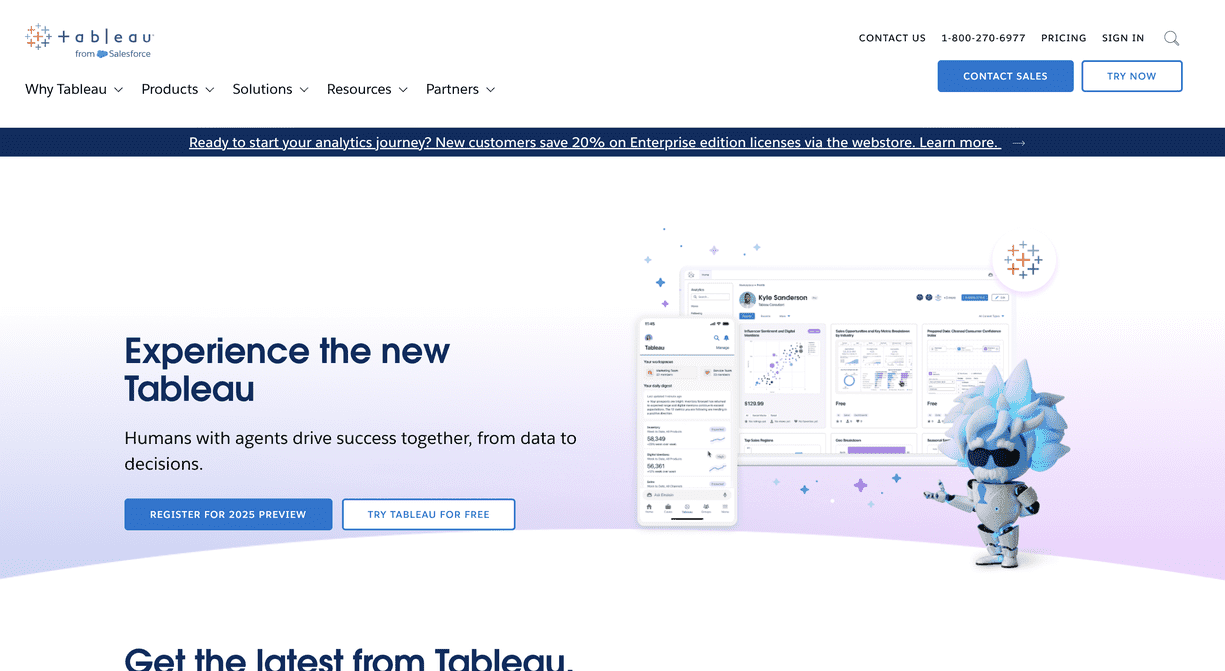
Tableau ships with a built-in Microsoft SQL Server driver and has supported the connector by default since Tableau Desktop v9.3. The connector handles stored procedures, custom SQL, and SSL connections, and can also connect to Azure SQL Database, Azure Synapse Analytics (formerly SQL Data Warehouse), and SQL Server Parallel Data Warehouse. For teams with dedicated analysts, Tableau's visual vocabulary and depth of chart types remain hard to beat.
The tradeoff is cost and complexity. Tableau is aimed at analyst-driven workflows, and licensing, Tableau Server administration, and Tableau Prep for modeling can all add up quickly. For a small SaaS or ops team that just needs clean dashboards over SQL Server, Tableau is usually more firepower — and more spend — than the problem calls for.
Key features
- Built-in Microsoft SQL Server driver with stored procedure and custom SQL support
- Deep library of interactive visualizations and a polished dashboard builder
- Tableau Prep for data shaping and Tableau Server for enterprise governance
What users say about Tableau
Users consistently praise Tableau for its intuitive drag-and-drop interface that simplifies the creation of interactive dashboards, making data visualization accessible even for non-technical users. It integrates seamlessly with a wide range of data sources — from SQL databases to cloud platforms — which makes it easy to pull in data without heavy engineering support. — Summary of Tableau reviews on G2
Pricing
Viewer starts at $15/user/month, Explorer at $42/user/month, and Creator at $75/user/month, all billed annually. Enterprise pricing is higher, with Creator around $115/user/month.
5. Grafana: Best for operational and time-series dashboards on SQL Server

Best for
Engineering, DevOps, and platform teams that need real-time operational dashboards, monitoring, and time-series visualization directly from SQL Server, Azure SQL Database, or a SQL Server 2005+ instance.
Grafana ships with a built-in Microsoft SQL Server data source plugin that supports any SQL Server version from 2005 onwards, plus Azure SQL Database. No separate plugin install is required. It supports time-series queries with built-in time-grouping macros, table panels, template variables, annotations that overlay SQL Server events on your graphs, and alerting based on SQL Server query results — which makes it a natural fit for operational dashboards next to Prometheus, Loki, or other observability tooling.
Where Grafana is less suited is business reporting or polished product analytics aimed at nontechnical users. The interface assumes comfort with metrics concepts and SQL, and assembling executive-ready business dashboards takes more work compared to purpose-built BI tools. But for engineering teams that already live in dashboards, Grafana's deep SQL Server integration and alerting are hard to beat.
Key features
- Built-in Microsoft SQL Server data source plugin with support for SQL Server 2005+ and Azure SQL Database
- Alerting based on SQL Server query results with flexible notification routing
- Extensive visualization library and time-series panels for operational workloads
What users say about Grafana
Grafana is a great tool for real-time monitoring. Its intuitive dashboards make it easy to visualise trends and statuses across multiple systems. The most I like about this software is that it's free to use and it's open source — it has a broad plugin ecosystem that can connect to almost anything including SQL Server and Azure SQL.
Pricing
Open-source version is free to self-host. Grafana Cloud starts at $19/month plus usage-based billing for logs, metrics, and traces.
6. Apache Superset: Best self-hosted BI platform for teams with engineering capacity
Best for
Companies that want a full-featured open-source BI platform, have in-house engineering to run it, and don't mind managing their own analytics infrastructure on top of SQL Server.
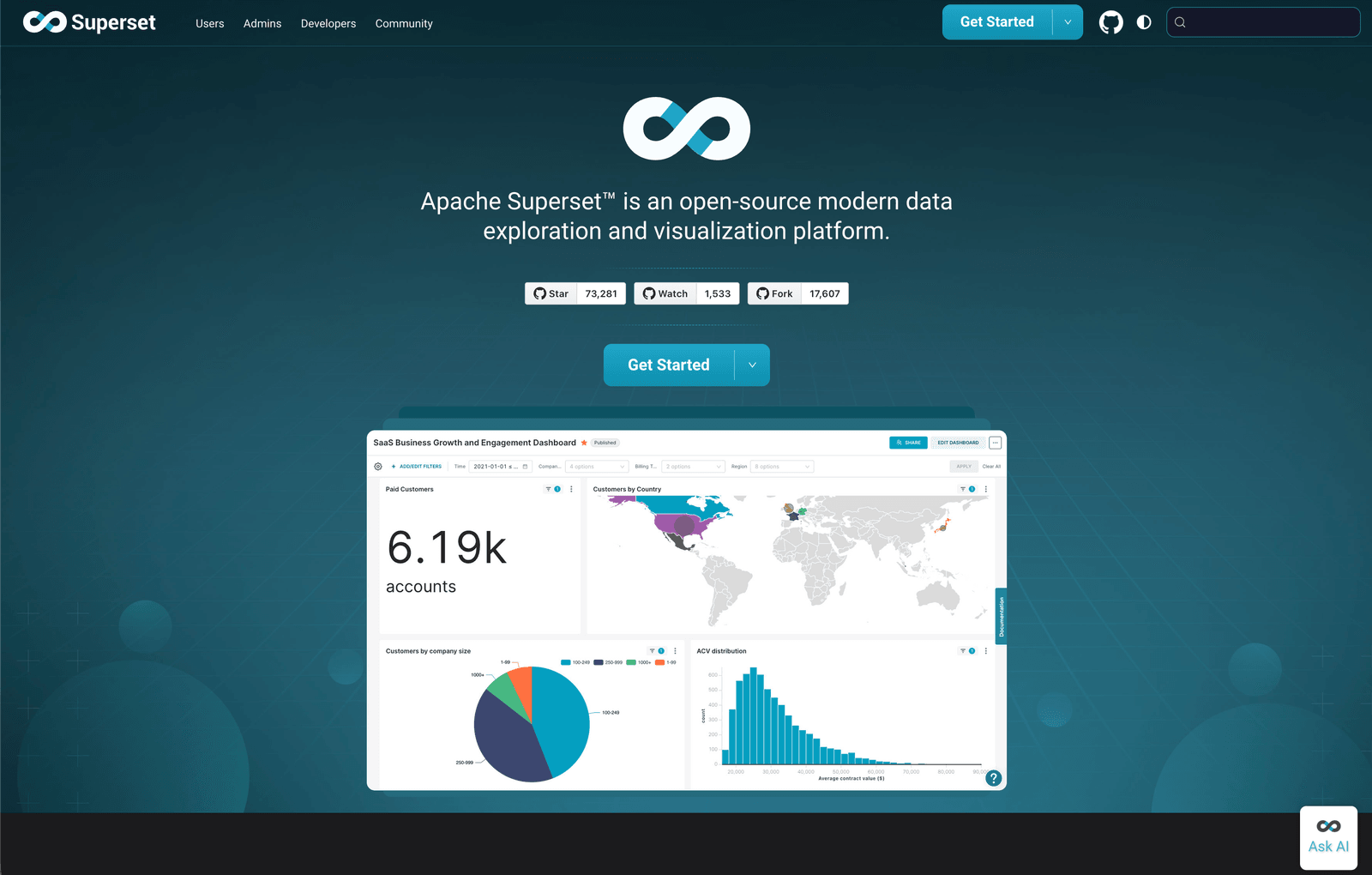
Apache Superset connects to Microsoft SQL Server using the mssql+pymssql SQLAlchemy driver and supports JOINs, subqueries, dynamic schema, catalog support, SSH tunneling, query cancellation, cost estimation, and SQL validation against SQL Server. It ships with SQL Lab for exploration, a no-code Explore view, a dashboard builder, row-level security, and a large library of visualizations. For teams comfortable operating their own stack, Superset gives you the flexibility of a modern BI tool without vendor lock-in.
The tradeoff is operational overhead. Superset officially recommends running its own metadata database on Postgres rather than SQL Server, so even if you're a pure SQL Server shop on the data side, you'll likely add a small Postgres instance for Superset itself. Hosting, upgrades, auth integration, and user management are all on you, which is usually fine for engineering-heavy teams but a real commitment for smaller product teams.
Key features
- Connects to SQL Server via the
mssql+pymssqlSQLAlchemy driver with JOINs, subqueries, and SSH tunneling - SQL Lab, no-code Explore view, and a rich gallery of visualizations
- Row-level security and role-based access controls for multi-team deployments
What users say about Apache Superset
We can combine data from different systems for thorough analysis because the platform supports an extensive amount of data sources, including databases like SQL Server, MySQL, and Postgres.
Pricing
Apache Superset is free and open-source. Operational costs depend on hosting, maintenance, and any managed Superset offerings you choose.
Implementing your MSSQL reporting tool effectively
Choosing the right MSSQL reporting tool is only half the job. A tool can give you clean dashboards and powerful querying, but it won't deliver value on its own. Like any part of your product, success depends on how well you implement it and how quickly your team starts using it.
Here's how to get the most out of whichever MSSQL reporting tool you choose.
1. Onboarding your team
Invest time in proper onboarding. Developers, DBAs, product managers, support teams, and anyone responsible for reporting should understand how the tool works from day one. A short, focused onboarding session prevents future bottlenecks and avoids misconfigurations that lead to misleading dashboards or accidental data exposure — especially important on SQL Server, where many teams already have mature login and role structures you want analytics to respect.
2. Start with a pilot
Instead of rolling dashboards out to everyone at once, start with a small group. A controlled pilot helps you validate metrics, refine permissions, and confirm that the dashboards you built actually answer the questions teams have. It also reduces the chance of misaligned metric definitions or noisy, unused reports cluttering your workspace.
3. Collect feedback continuously
Reporting is not a "set it and forget it" feature. Once dashboards go live, actively ask your users — internal or customer-facing — what works and what needs improvement. As your SQL Server schema and product evolve, your reporting layer should evolve alongside it.
4. Monitor performance and usage
Track how often dashboards are viewed, which queries run most frequently, and which reports are ignored. If certain dashboards never get opened, refine them. If certain queries slow down at scale, work with your DBA to optimize them, add indexes, or push aggregations into views or stored procedures. Understanding how your users interact with analytics helps you measure ROI and improve reporting over time.
Conclusion
The MSSQL reporting tool you choose becomes part of how your team understands the business. It shapes how founders track growth, how support teams identify issues, and how customers interpret their own data inside your product. It needs to connect reliably to your SQL Server schema, serve the right people at the right level of access, and update without manual effort.
If you want a reporting layer that works naturally with Microsoft SQL Server without extra infrastructure or data pipelines, tools like Draxlr help you ship dashboards quickly while keeping your stack simple. Whether you need internal visibility, customer-facing analytics, or embedded dashboards inside your product, the right tool should help you move fast without compromising on clarity or reliability.
If you'd like to explore a SQL Server-native approach to dashboards and reporting, you can try Draxlr and see how it fits your workflow.
FAQs
1. What is a MSSQL reporting tool?
A MSSQL reporting tool connects directly to your Microsoft SQL Server database and lets you build dashboards, charts, and reports without writing T-SQL for every request. These tools help teams explore live data safely without setting up ETL pipelines or extra infrastructure.
2. Can I build customer-facing dashboards on SQL Server?
Yes. Several reporting tools support embedding dashboards inside your product. Look for options with secure embed tokens, row-level filtering for multi-tenant applications, and styling controls so the dashboards match your product's UI.
3. Does Microsoft SQL Server have built-in reporting?
SQL Server ships with SQL Server Management Studio and SQL Server Reporting Services (SSRS), which cover paginated reports and traditional enterprise reporting well, but they are not designed for modern interactive dashboards, self-service analytics, or embedded analytics in a SaaS product. Most teams pair SQL Server with a dedicated reporting tool for those use cases.
4. Is it safe to connect a reporting tool directly to SQL Server?
Yes, as long as the tool respects SQL Server logins and roles, uses encrypted connections (SSL/TLS), and supports user-level filtering when embedding dashboards. Most modern reporting tools offer these safeguards. Avoid tools that require exporting or duplicating your data outside your environment.
5. Can non-technical team members use MSSQL reporting tools?
Yes. Choose a tool that offers visual query builders, saved reports, dashboard filters, and easy sharing so nontechnical users can work with SQL Server data without writing T-SQL. AI text-to-SQL features make this even more accessible for founders, finance, and operations teams.
6. Do I need a data warehouse for reporting on SQL Server?
No. Most reporting tools connect directly to SQL Server — including on-prem, self-hosted, and Azure SQL Database — without requiring a separate warehouse. Unless you have extremely large analytical workloads or need cross-database joins across multiple systems, a direct SQL Server connection is faster to set up, easier to maintain, and sufficient for most product and business reporting needs.
About the author

Vivek is a coder and the founder of Draxlr who cares deeply about building good products. He works at the intersection of AI, SQL, dashboards, and embedded analytics, with a strong focus on making complex data workflows feel simple, useful, and fast for real teams.
If you have questions about anything in this guide, or want to compare options for your specific stack, you can email Vivek at vivek@draxlr.com, try Draxlr free, or reach out directly through the Draxlr team.