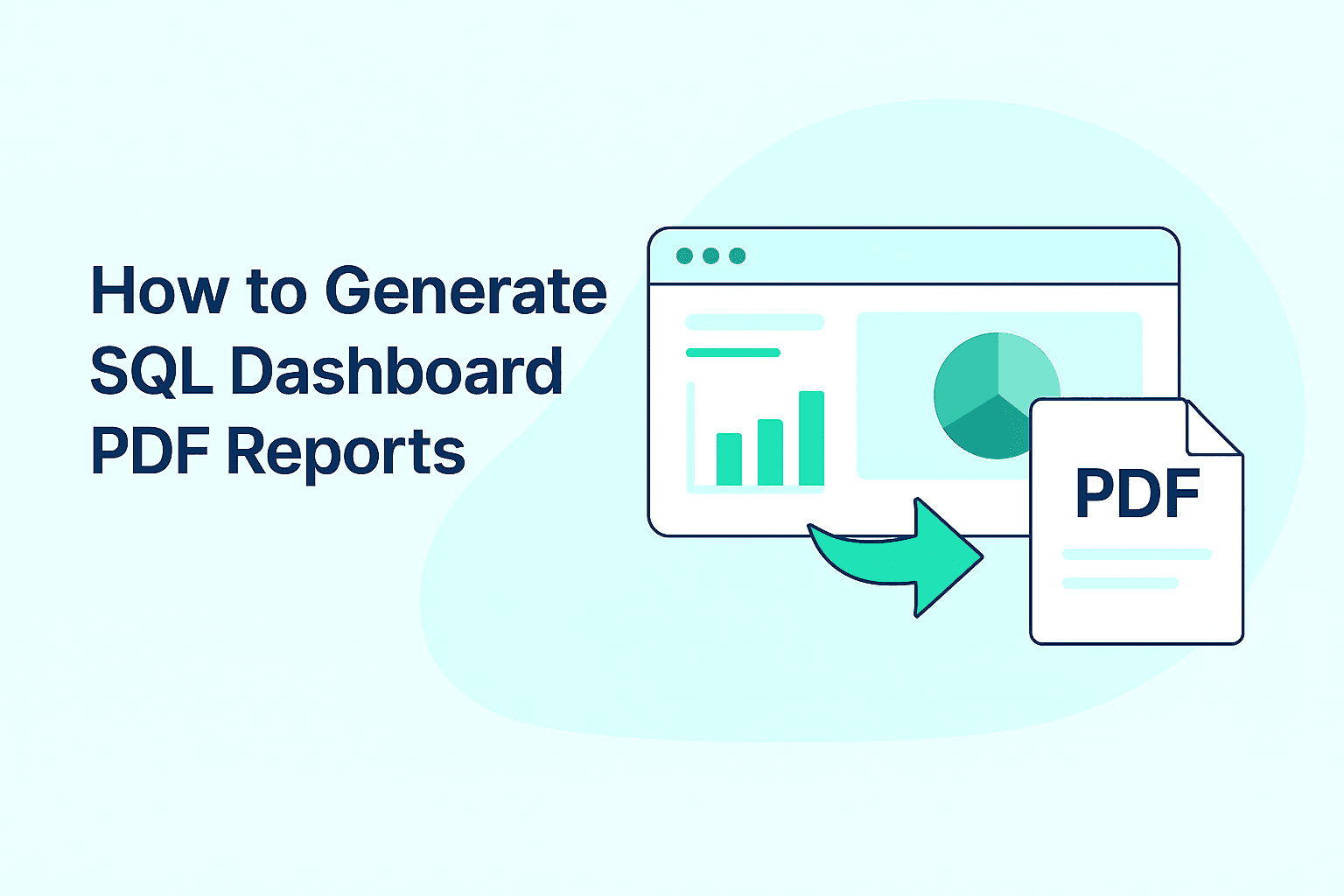
How to generate SQL dashboard PDF reports
Generate SQL dashboard PDF reports in seconds with Draxlr. Export, share, and automate reports from your live SQL dashboard.
Reporting is a critical part of every data-driven business. Whether you’re tracking KPIs, presenting performance insights to management, or sharing updates with clients, dashboards make data easy to understand. But when you need to present these insights offline or share them outside your analytics tool, exporting your dashboard as a PDF report becomes essential.
With Draxlr, you can go from dashboard to PDF in just a few clicks—without writing a single line of code. It connects directly to your SQL database, allowing you to build dashboards visually, using AI, or with SQL, and instantly export them as clean, print-ready PDFs.
In this blog, we’ll walk through how to generate SQL dashboard PDF reports using Draxlr, why they’re useful, and how you can automate them for recurring reporting.
Why generate SQL dashboard PDF reports
Exporting dashboards as PDFs might sound simple, but it’s a powerful feature that improves how teams share, present, and store insights. Here’s why it matters:
- Easy sharing: PDF reports are universally accessible and can be shared via Email, Slack, or internal portals.
- Offline access: Perfect for teams who need to review data during meetings or in low-connectivity environments.
- Print-ready format: PDF exports maintain dashboard formatting, color themes, and chart alignment for clean reports.
- Historical analysis: Saving PDFs of dashboards for future comparison, audit trails, or compliance records.
- Controlled dissemination: Ensuring consistent data presentation without the risk of dashboard misinterpretation or errors during viewing.
Whether you’re a founder preparing investor updates or an analyst sharing monthly KPIs, a downloadable PDF report makes communication clear and consistent.
How to generate SQL dashboard PDF reports using Draxlr
Step 1: Connect your data
Start by signing up to Draxlr. Once signed up, connect your SQL database to Draxlr or use demo db to explore. Draxlr supports PostgreSQL, MySQL, SQL Server, MariaDB, BigQuery, Databricks, Snowflake, Supabase, and more. Once connected, your schema syncs instantly.
Step 2: Create a Dashboard
Open demo dashboard or create a new one using one of Draxlr’s three modes:
- AI Chat – Ask questions in plain English, and Draxlr generates SQL and visualizations automatically.
- Visual Query Builder – Build queries without SQL; drag and drop tables, filters, and metrics.
- SQL Editor – Write your own SQL for maximum flexibility and control.
Once your dashboard is ready, it’s only a few clicks away from becoming a PDF.
Step 3: Refine your layout
Add filters, resize visualizations, and rearrange to make your dashboard report-ready. Draxlr automatically preserves these configurations when exporting.
Step 4: Export as PDF
Click Export Dashboard as PDF to generate a downloadable, print-ready report. The export includes your charts, filters, and layout exactly as displayed on the dashboard.
Send summary emails with SQL dashboard PDF reports
Along with manual PDF exports, Draxlr also lets you automate summary emails that include a PDF version of your dashboard.
Inside Dashboard Settings, you can:
- Enable the toggle for "Receive Summary Email".
- Add one or more recipient email addresses.
- Choose the notification interval (daily, weekly, or monthly).
- Set the time when the report should be sent.
- Define the cache interval to control how frequently data is refreshed.
When the email is delivered, it includes a quick summary of key metrics along with the attached PDF dashboard report.
This feature helps teams who want consistent updates without manually logging in or exporting data. It’s perfect for:
- Daily sales or performance summaries.
- Weekly marketing campaign reports.
- Monthly executive dashboards.
Set it once—and Draxlr handles the rest.
Key Benefits of Using Draxlr for PDF Reports
When compared to other BI tools, Draxlr stands out for its simplicity and flexibility in PDF generation:
- Real-time data access: Connects directly to live databases like PostgreSQL, MySQL, SQL Server, BigQuery, Databricks, Snowflake, and Supabase.
- No-code workflow: Anyone can build dashboards and export reports.
- Secure architecture: Data isn’t stored. Only queried and cached temporarily for faster performance.
- Custom branding: Add your logo, colors, and layout preferences to maintain visual consistency.
Whether you’re part of a startup or an enterprise team, Draxlr’s dashboard-to-PDF workflow saves time, reduces manual effort, and ensures consistent reporting quality.
Conclusion
Generating PDF reports from SQL dashboards doesn’t have to involve complex scripts or external plugins. With Draxlr, you can connect your database, visualize data, and export or automate PDF reports—all in minutes.
From product analytics to financial summaries, every report stays connected to real-time SQL data while maintaining your brand identity.
👉 Try 7-day free trial of Draxlr – No Credit Card Required and turn your live dashboards into shareable, presentation-ready PDF reports today.
FAQs
1. Can I schedule automatic PDF exports?
Yes. Draxlr lets you schedule dashboards to be automatically sent as PDF reports to your team or clients at defined intervals.
2. Will the PDF reflect real-time data?
Yes. Each export queries your live database, ensuring your PDF reflects up-to-date information at the time of generation.
3. Do I need technical knowledge to export reports?
No. Draxlr is built for everyone. Its visual interface and AI chat make it easy to build and export dashboards without SQL expertise.
4. Are there limits on sharing or downloading SQL dashboard PDF reports from Draxlr?
No, you can share and download PDF reports as often as needed with Draxlr.