Embed SQL Dashboards in Dark and Light Mode
Easily embed dashboards in light or dark mode using Draxlr. Dynamically match your app’s theme with simple configuration and seamless re-rendering.
Overview
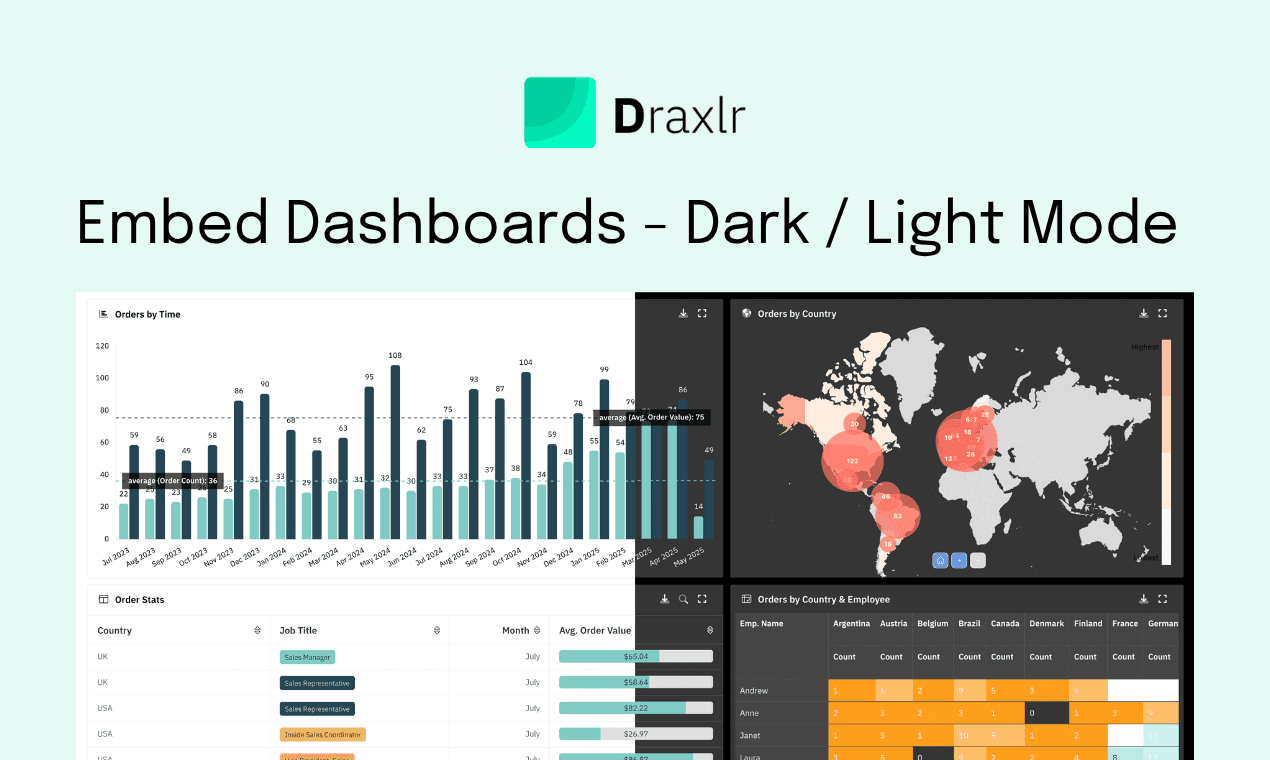
When you embed a dashboard inside your web app, it should feel native to your product — including its theme. Whether your app uses light mode, dark mode, or a custom color scheme, Draxlr makes it simple to match your embedded dashboard to your app’s look and feel.
With Draxlr, you can switch between dark and light mode dynamically using just a few lines of configuration. No need to rebuild or re-embed.
Why Theme-Aware Dashboards Matter
Modern web apps often support user-controlled themes. When a user switches to dark mode, every component — from navigation bars to charts — should adapt automatically.
Embedding dashboards that respect this behavior keeps the UI consistent and improves accessibility, especially for users who prefer darker screens during nighttime work sessions.
How Draxlr Makes It Easy
Draxlr’s embedding configuration accepts multiple styling options. You can define:
- Background color – overall dashboard background
- Card background color – surface color for individual widgets
- Header and Download options visibility
- Other display preferences such as filters, drill-downs, and more
These options can be set in your embed code and changed dynamically based on your app’s active theme or requirements.
Example: Embedding a Dashboard in Light Mode
<div
  id="draxlr-67a2fd96f762c56b91c3724f"
  class="draxlr-embed"
  data-type="dashboardGroup"
  data-id="67a2fd96f762c56b91c3724f"
  ...
></div>

<script>
  let dashboard67a2fd96f762c56b91c3724f = {
    filters: {},
    configuration: {
      backgroundColor: "#ffffff", // <--- Background color for the whole dashboard
      cardBackgroundColor: "#fefefe", // <--- Background color for Dashboard items
      ...
    },
  }
</script>

<script src="https://app.draxlr.com/embed-v2.js"></script>
This setup renders your dashboard in light mode, ideal for white or pastel UIs.
Example: Switching to Dark Mode Dynamically
You can easily change the configuration on theme switch:
function toggleTheme(isDark) {
  const config = dashboard67a2fd96f762c56b91c3724f.configuration
  if (isDark) {
    config.backgroundColor = "#111111"
    config.cardBackgroundColor = "#2b2b2b"
  } else {
    config.backgroundColor = "#ffffff"
    config.cardBackgroundColor = "#fefefe"
  }
  draxlr.render() // re-render with new config
}
This lets your embedded dashboard automatically follow the user’s system preference or your app’s internal theme toggle.
Draxlr SDKs for React and Vue.js
Draxlr provides ready-to-use SDKs for React and Vue.js, making embedding dashboards into your modern frontend apps even easier. The SDKs handle initialization, events, and configuration updates seamlessly — all you need to do is import the component and set your dashboard credentials.
React Example
// Install
// npm i react-draxlr-embed --save
// Documentation: https://www.npmjs.com/package/react-draxlr-embed

import DraxlrEmbed from 'react-draxlr-embed'

function App() {
  return (
    <DraxlrEmbed
      id="6909de1a03b337aa47efa11d"
      type="dashboardGroup"
      options={{
        "configuration": {
          "backgroundColor": "#000000ff",
          "cardBackgroundColor": "#212121ff",
          ...
        },
        "filters": {}
      }}
      onBeforeLoad={() => console.log('Loading...')}
      onAfterLoad={() => console.log('Load complete')}
      onError={(error) => console.error('Error:', error)}
    />
  )
}
Real Example
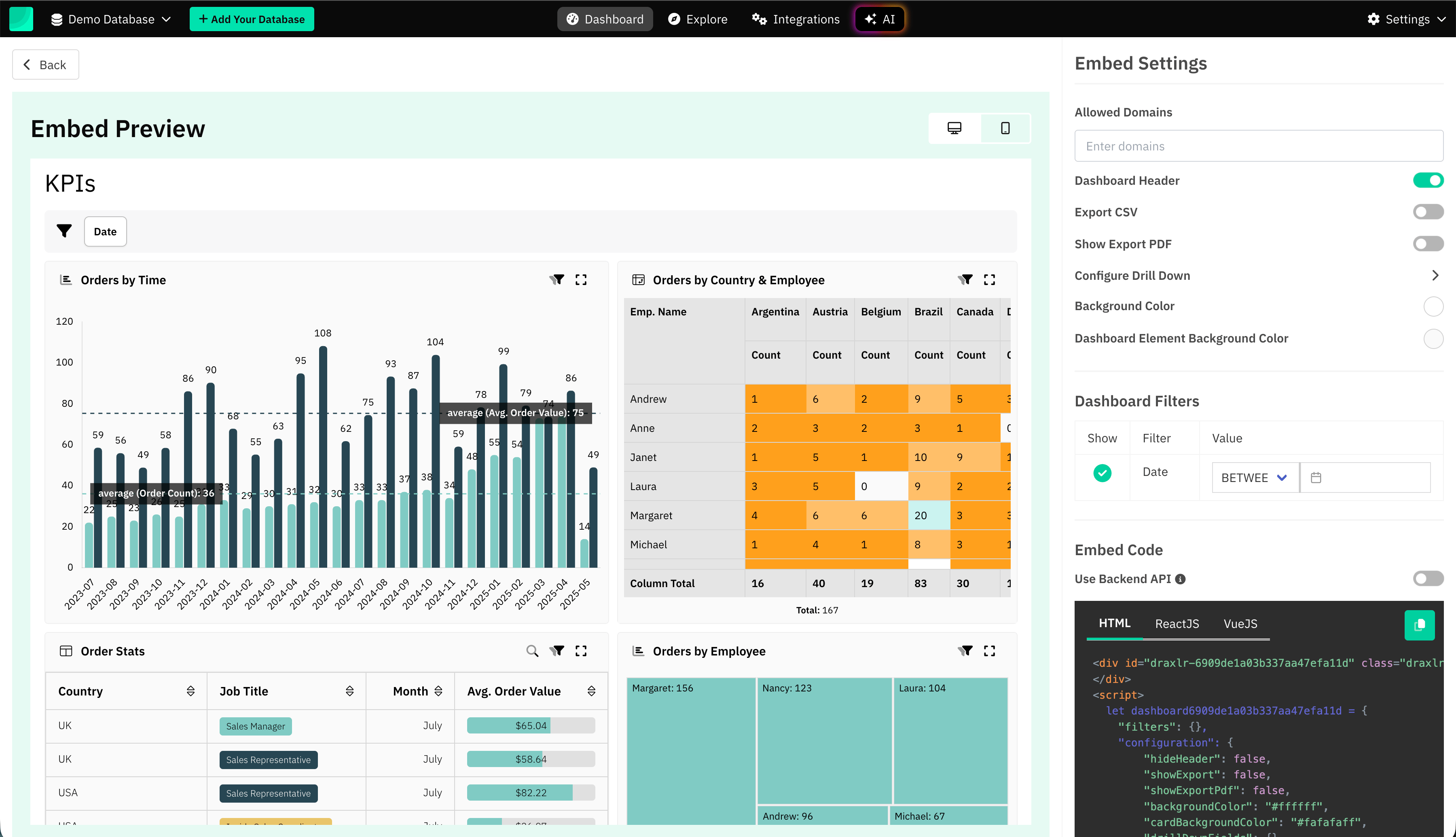
Below you can see the same Draxlr dashboard embedded in two modes:
Light Mode
Dark Mode

Both versions use the exact same embed, only the configuration values for background colors differ.
Benefits of Theme-Adaptive Embedding
- Seamless integration into your app’s design
- Better accessibility and reduced eye strain
- No need to maintain multiple embeds
- Instant theme switch with a single JavaScript function
Conclusion
Whether your app runs in bright daylight mode or sleek dark theme, Draxlr lets you embed dashboards that blend perfectly with your UI.
You control the look and feel directly through the embed configuration — making it effortless to keep your analytics visually consistent with your product’s design.
FAQs
1. Can Draxlr dashboards automatically switch between light and dark mode?
Yes. You can dynamically update the backgroundColor and cardBackgroundColor properties in the configuration object and call draxlr.render() to re-apply the theme instantly.
2. Do I need to re-embed the dashboard for theme changes?
No. Draxlr allows real-time theme switching through configuration updates — no additional embed or reload is required.
3. Can I use custom brand colors instead of standard light/dark themes?
Absolutely. Draxlr lets you define any color values (hex, rgba, etc.), so you can match your brand palette or create entirely custom themes.
4. Is dark mode supported in embedded dashboards on all browsers?
Yes. Draxlr’s embedded dashboards are fully responsive and compatible with modern browsers in both light and dark modes.