How to Generate SQL Queries With AI: A Step-by-Step Guide
Generate SQL with AI: ask in plain English, check the answer and the SQL, refine it with follow-ups, teach the AI your business terms and save to a dashboard.

You want to know which employees handled the most orders. The data's right there in two tables. Standing between you and the answer is a join, a COUNT and a GROUP BY. And the person on your team who writes SQL is busy until Thursday.
That's a common gap. In the 2025 Stack Overflow Developer Survey, 58.6% of respondents said they'd used SQL in the past year (Stack Overflow, 2025). That's developers, though. The people asking business questions often aren't the ones who write the queries.
AI closes that gap. You describe what you want in plain English. The AI writes the SQL, runs it on your database and tells you what it found. This guide walks through doing that in Draxlr AI with a real example from our demo database: the question, the answer, the SQL behind it, the follow-ups, and what to do when the AI needs more context.
Key Takeaways
- Ask in plain English. Draxlr AI writes a read-only SQL query, runs it, and answers with the real numbers. The SQL is always one click away.
- Refine, don't restart. Follow-ups change the current query and keep its joins and filters.
- Vague questions get stated defaults or a clarifying question, never a silent guess.
- Check the SQL. 66% of developers say their top AI frustration is answers that are "almost right, but not quite" (Stack Overflow, 2025).
How Does AI Generate a SQL Query?
An AI SQL generator reads your database schema and works out which tables, joins and filters your question needs. Then it writes the query. Draxlr AI also runs that query on your database and writes a short answer from the actual results, so you get the number and the SQL that produced it.
Here's what happens after you press Enter:
- Draxlr AI reads your schema, plus any business context you've added (more on that below).
- It picks the tables, fields, joins and aggregations the question needs.
- It writes a read-only SQL query and runs it on your database.
- It writes a one- or two-sentence answer from the results, with the key number in bold.
- It opens the result as a chart, a table or a number card.
Why does the context step matter so much? Real schemas are messy. On Spider 2.0, a benchmark of 632 real-world enterprise text-to-SQL workflows, GPT-4o's success rate was only 10.1%, compared with 86.6% on the older Spider 1.0 (Spider 2.0, 2025). Clean demo schemas flatter AI. Production schemas, with vague column names and status flags nobody documented, don't.
If you want the full pipeline under the hood, read Natural Language to SQL: How It Works. This post sticks to the practical side.
What Do You Need Before You Start?
You need two things: a Draxlr account and a connected SQL database. Every new account gets a 7-day free trial with Power plan access, and no credit card is required. AI chat is on every plan, so you can keep using it after the trial.
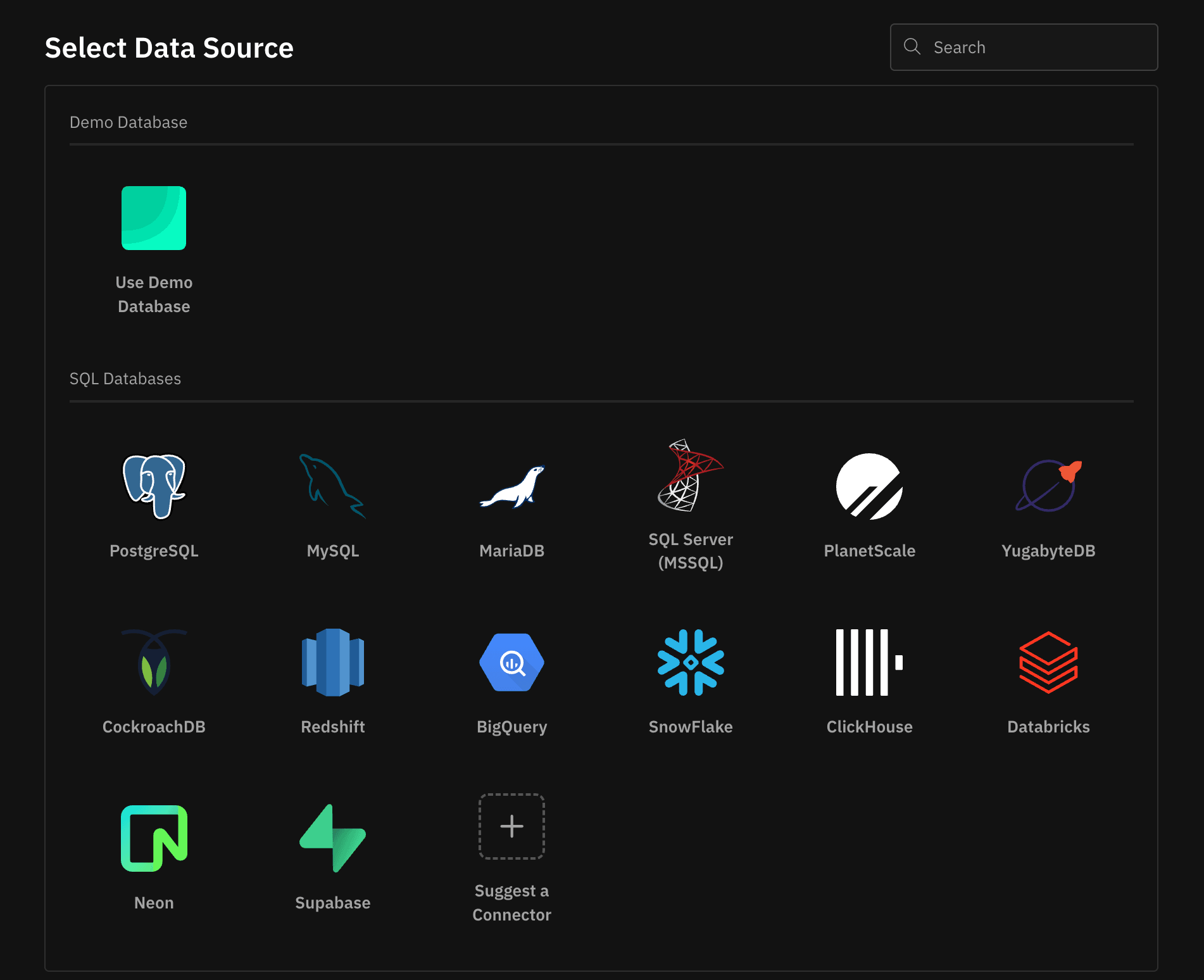
Draxlr connects to PostgreSQL, MySQL, SQL Server, MariaDB, Supabase, Neon, PlanetScale, CockroachDB, ClickHouse, Snowflake, BigQuery, Redshift, Databricks and YugabyteDB.
One tip before you connect: use a read-only database user. Draxlr only runs read queries from the AI chat, but a read-only user makes the database itself refuse any write. That's the guarantee you want.
No database handy? Pick Use Demo Database on the same screen. It's the one we use in the walkthrough below.
How to Generate a SQL Query With AI in Draxlr
The whole loop takes five steps: open the AI chat, ask, check, refine, then save. We'll use Draxlr's demo database, a classic orders schema with Employees, Orders, Customers and Products tables. Every number below is what the AI returned on that database.
Step 1: Open Draxlr AI and start a new chat
Click AI in the left sidebar. The chat sidebar lists your earlier chats, grouped by Today, Yesterday, Previous 7 days and so on. It also has three handy links: View schema shows your tables and fields while you type, Train AI opens the business context, and the AI credits counter shows what's left this month.
Click New chat to start fresh.
Step 2: Ask your question in plain English
Type the question the way you'd ask a colleague. We asked:
Show orders by employee, show first name, and orders count in desc
No table names, no join hints. You can be that loose because Draxlr AI reads the schema. Being specific still helps, though: say what to measure, how to group it and what time window you care about.
Step 3: Read the answer, then check the SQL
Draxlr AI came back with this:
Margaret has the highest order count with 156 orders.
- Janet: 127
- Nancy: 123
- Laura: 104
This includes all employees, including any with zero orders, and all order records.
Look at that last sentence. It's the most useful part of the answer. It tells you what the AI counted: every employee, even ones with zero orders, and every order, with nothing filtered out. Whenever you leave something unspecified, the answer says what it did instead.
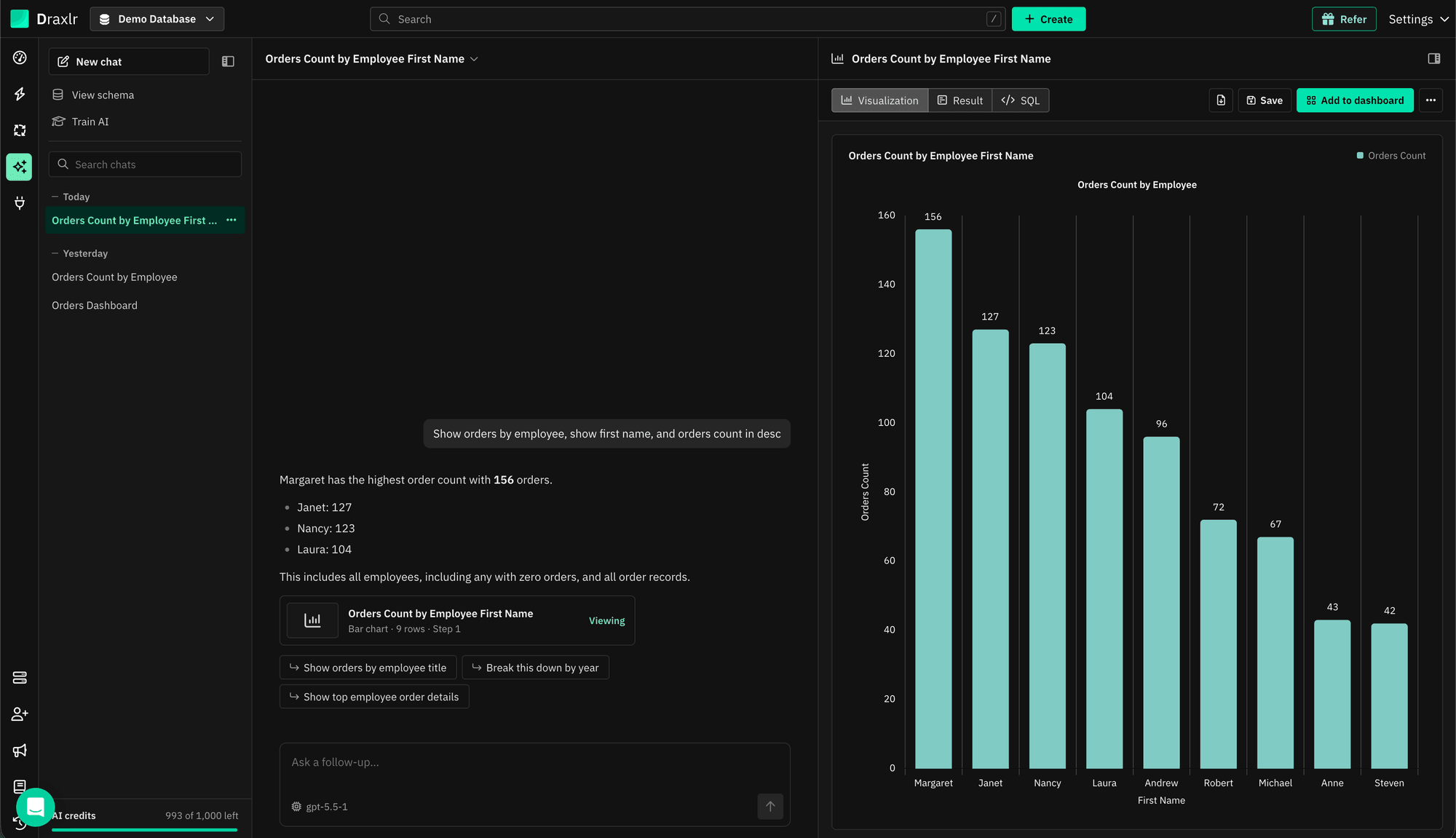
The result opens in the results panel on the right, with three tabs:
- Visualization shows the chart, table or number card. Click a bar to drill down, and click Reset to go back.
- Result shows the rows behind the chart.
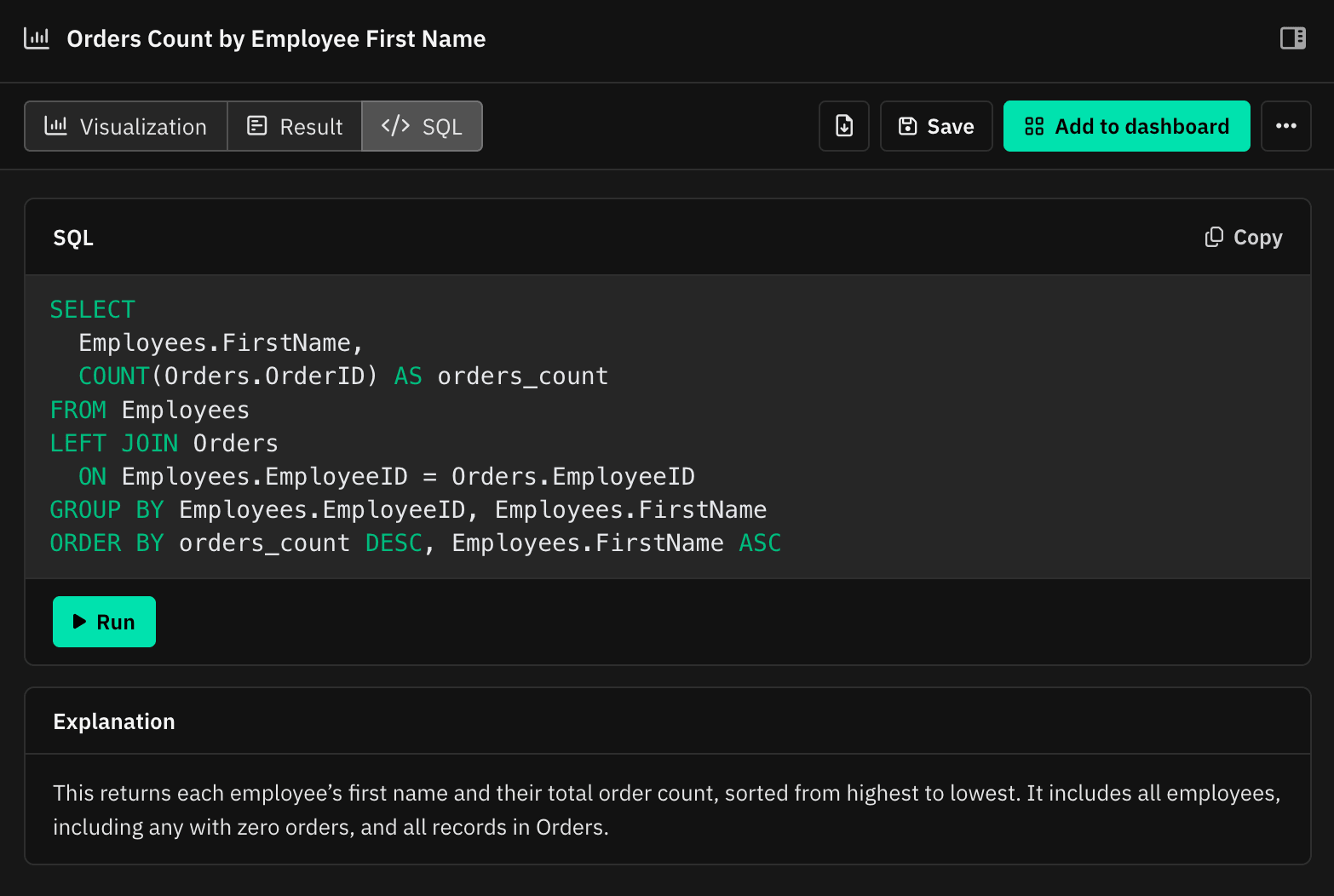
- SQL shows the generated query and a short explanation of what it returns. You can edit it, run it and copy it. An Edited badge appears once you change it.
Here's the SQL Draxlr AI wrote for our question:
SELECT
  Employees.FirstName,
  COUNT(Orders.OrderID) AS orders_count
FROM Employees
LEFT JOIN Orders
  ON Employees.EmployeeID = Orders.EmployeeID
GROUP BY Employees.EmployeeID, Employees.FirstName
ORDER BY orders_count DESC, Employees.FirstName ASC
The LEFT JOIN is why employees with zero orders stay in the list, and the explanation under the SQL says the same thing in plain English. That's the kind of check worth doing every time: does the SQL match what the answer claims?
How did it pick a bar chart? Unless you ask for something specific, Draxlr AI picks the display from the shape of the result:
| If the result is | Draxlr AI shows |
|---|---|
| A single value | A number card |
| A trend over time | A line chart for a range of more than 6 periods (like the last 12 months), a bar chart for 6 or fewer |
| One or two numbers across up to about 12 categories | A bar chart |
| Anything else, such as lists of records or many columns | A table |
You can ask for any other display: "show this as a pie chart", "make it a pivot table", "use a funnel". The list covers area, doughnut, scatter, bubble, radar, polar, funnel, map, tree map, sankey, calendar, Venn and combined bar-and-line charts. When only the display changes, the AI keeps the same query.
What if the SQL fails? Draxlr AI gets one attempt to fix the query and run it again. If that fails too, you'll see the error and a Try again option, so you don't have to retype the question.
Step 4: Refine the result with follow-up questions
Next, we only wanted the busiest employees, so we typed:
Only show employees who have more than 50 orders
The answer:
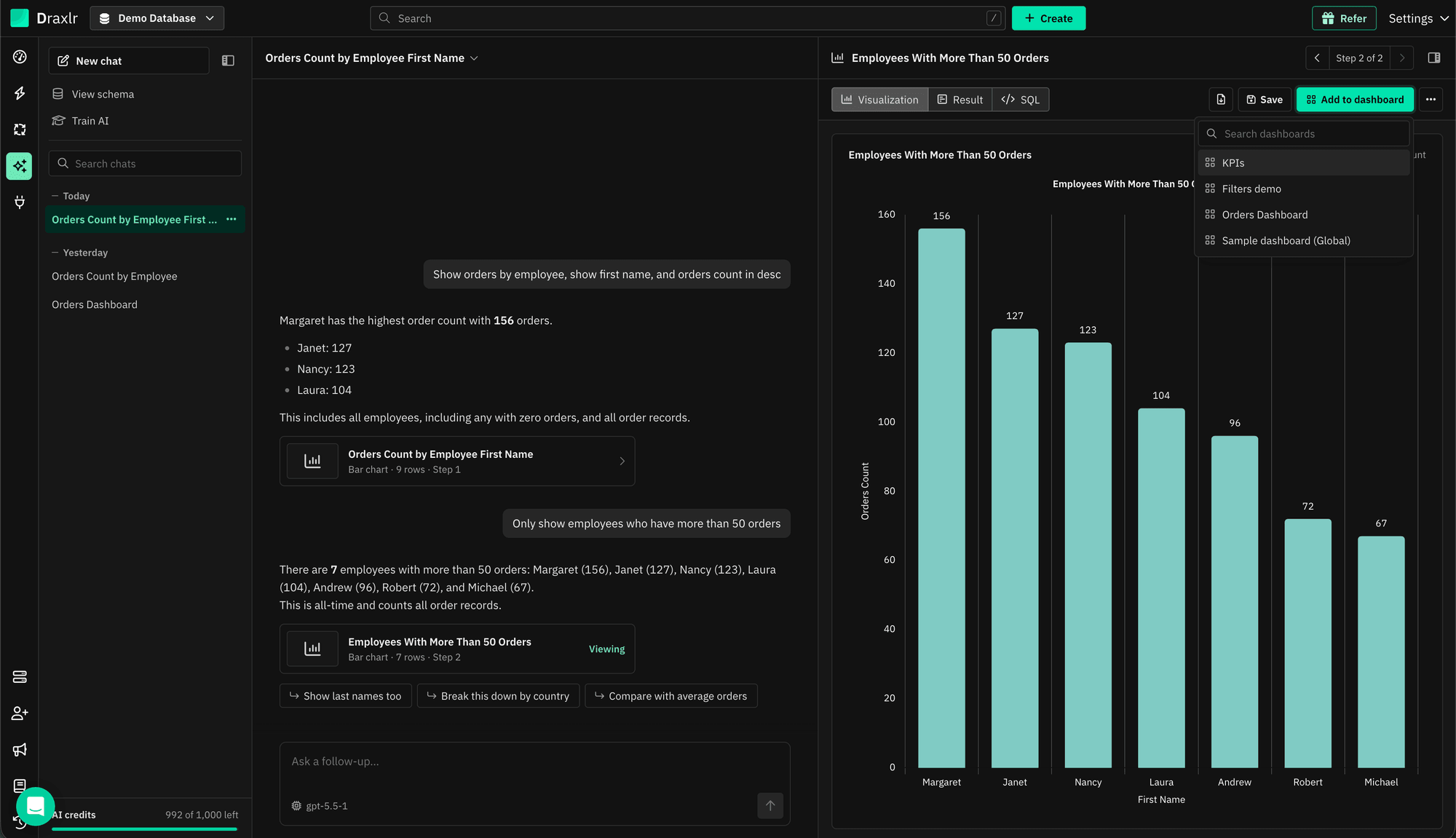
There are 7 employees with more than 50 orders: Margaret (156), Janet (127), Nancy (123), Laura (104), Andrew (96), Robert (72), and Michael (67). This is all-time and counts all order records.
Notice what didn't change: it's the same bar chart, now with 7 employees instead of 9. A follow-up like "only for 2025", "group by country" or "sort by revenue" edits the current query and keeps its joins, filters and display. A new, unrelated question starts a fresh query.
Each follow-up becomes a new step. Use the arrows in the panel header to move between steps, or click an earlier result card to jump back. Under the latest answer, Draxlr AI also suggests two or three next questions. Here they were "Show last names too", "Break this down by country" and "Compare with average orders". Click one to ask it.
Changed your mind about a question three steps back? Hover over your message and click the rewind icon. That message and everything after it are removed, and your text goes back in the box so you can edit and resend it.
Step 5: Save it, download it or add it to a dashboard
Once the result looks right, the panel header gives you a few options:
- Save stores it as a saved query you can reuse and edit later.
- Download exports the result as Excel (xlsx) or CSV.
- Add to dashboard lets you pick a dashboard from a searchable list.
- More actions has Copy SQL, Re-run, and Advanced options, which opens the query in the SQL editor for hand-tuning.
If the SQL uses variables, a variables bar appears above the result. You can change values there, or just ask: "set the country to Germany".
What Happens When Your Question Is Vague?
Vague questions are normal. Draxlr AI handles them in two ways: a sensible default it tells you about, or a short clarifying question when guessing would probably give you a wrong number. It doesn't silently guess.
Stated defaults
When a sensible default exists, Draxlr AI uses it and says so at the end of the answer:
| If you leave out | Draxlr AI uses |
|---|---|
| A time range for a total or count | All time |
| A time range for a trend | The last 12 months |
| A number after "top" | The top 10 |
| A period for "recent" | The last 30 days |
A couple of other rules are worth knowing. "Top" and "lowest" questions keep ties, so two products sharing tenth place both show up. When you compare two periods or groups, the answer gives both values, the difference and the percentage change.
Clarifying questions
Sometimes a default would be a coin flip. We asked the demo database "What's our revenue by month?" Revenue there could mean order totals after discount, order totals before discount, or freight charges. Any pick could be wrong, so Draxlr AI asked "How should revenue be calculated?" and offered those three options to click.
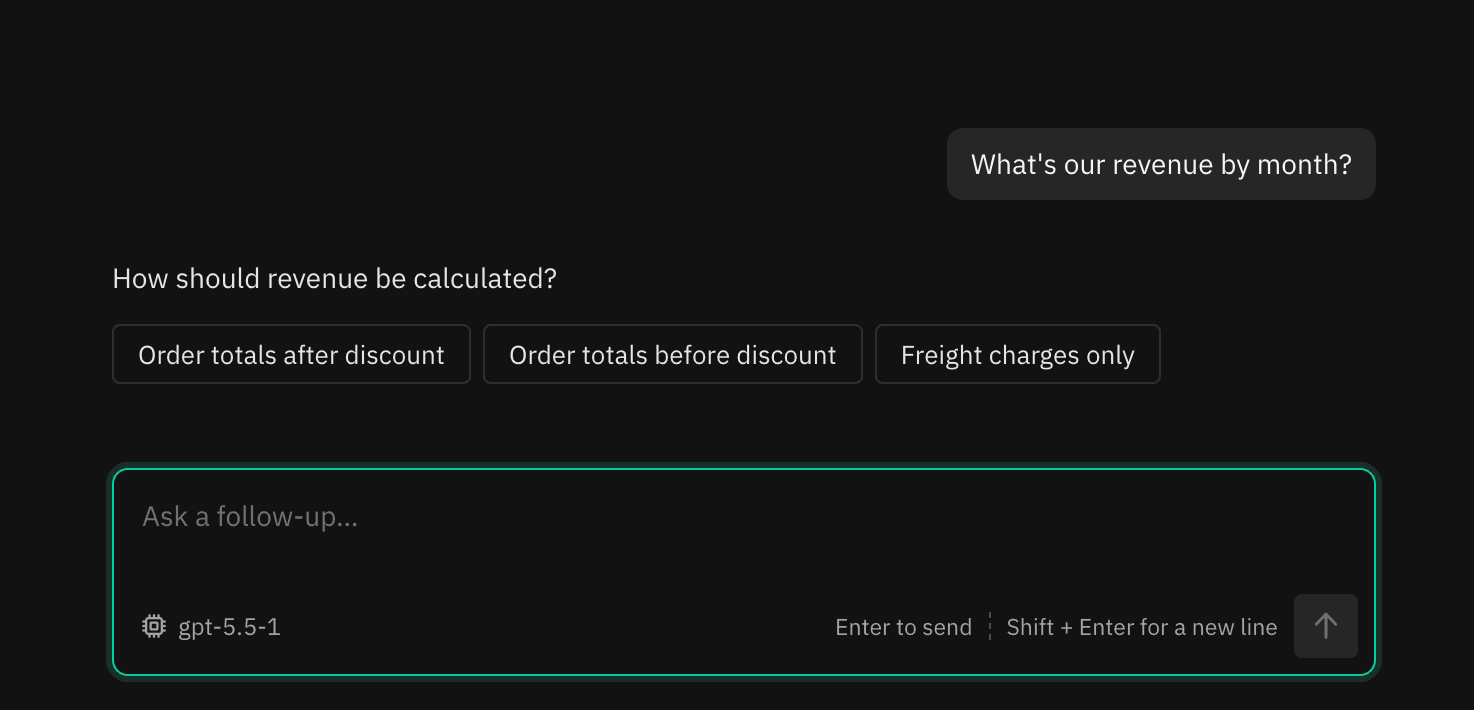
Draxlr AI asks a clarifying question like this when:
- A metric could map to several fields or tables.
- A business metric depends on which records count, such as whether cancelled orders count towards revenue.
- Nothing in the schema matches what you asked for.
- A follow-up like "compare them" could point at more than one earlier result.
We picked "Freight charges only". The answer used the trend default from the table above and said so: "Freight charges totaled $22,048.32 across the months shown, with the highest month at $6,393.57 in Feb 2026. This uses the last 12 months."
Closest matches for values that don't exist
Typos happen, and a typo in a filter returns zero rows. If you filter on a value that isn't in the data, say "orders shipped to Germny", Draxlr AI looks up the closest values stored in that column. The answer names the closest match and shows the matches as buttons, so you can pick the right one in a click.
How Do You Teach the AI Your Business Terms?
Your schema says orders.total_amount. Your team says "revenue, minus refunds, not counting test accounts". Draxlr gives the AI that missing knowledge in two places: Train AI for business definitions and Fine-tune AI for table and field descriptions. Both are on the Premium plan and above.
This is where the Spider 2.0 gap shows up in practice. The AI rarely fails on SQL syntax. It fails on meaning: which amount column, which statuses count, what "active" means. Context is how you close that gap.
Train AI: your business definitions
Train AI is one block of free-form text that goes into every question. Use it for definitions ("an active customer has at least one order in the period"), KPI logic ("revenue excludes refunds"), and internal jargon. You can also write rules about when the AI should or shouldn't ask you a clarifying question.
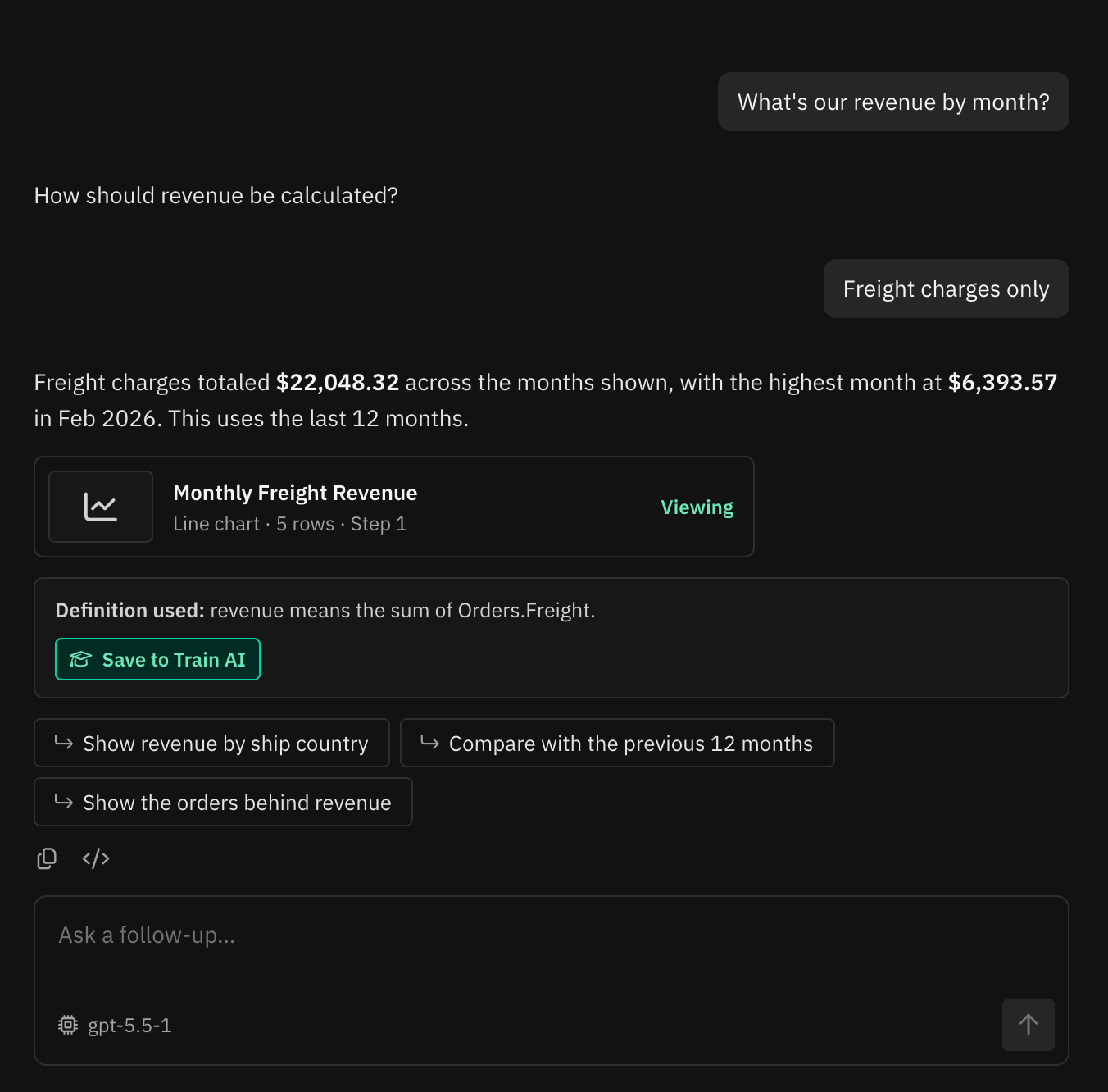
You don't have to write it all up front. When you answer one of the AI's clarifying questions about what a term means, the reply shows the Definition used. After our revenue question, it read:
revenue means the sum of Orders.Freight.
Click Save to Train AI next to it and the definition is added to your Train AI context. The reply then shows Saved to Train AI, and future chats use that definition without asking again. Saving definitions needs full access and a plan that includes Train AI.
Fine-tune AI: table and field descriptions, and what the AI can't see
Fine-tune AI works at the schema level. For each table you can add a description and switch Include in AI on or off. You can do the same for individual fields. A hidden field is marked Hidden from AI.
Hidden tables and fields are left out of everything Draxlr AI sees, and they're blocked in the SQL it writes. If a question needs hidden data, the AI says it can't answer instead of working around it. That's a good home for emails, phone numbers, salaries and tokens. Hiding only affects the AI: people with access can still query those fields in the query builder and SQL editor.
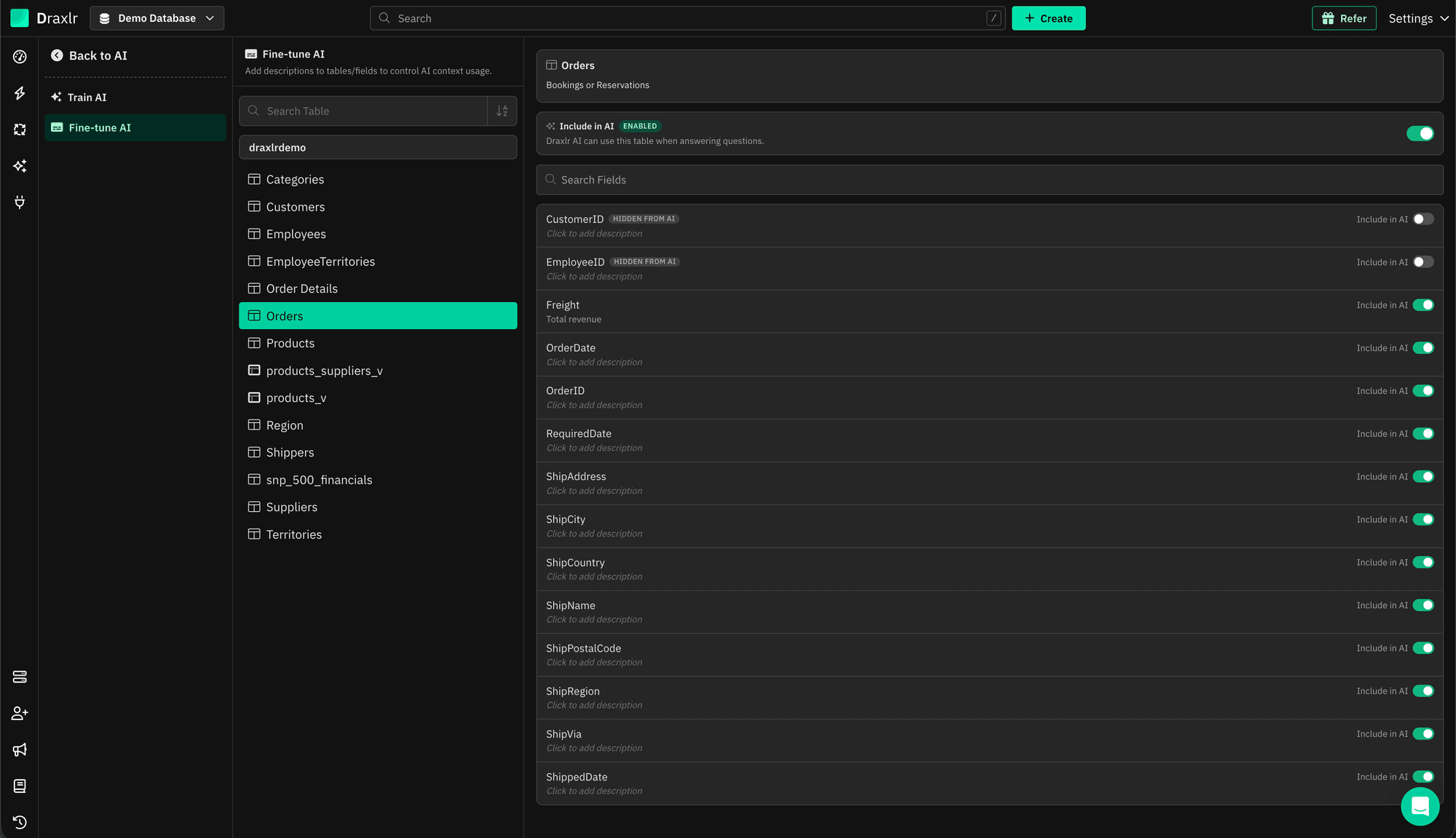
Start small. Describe the five tables you query most, clear up fields with vague names like status, type or code, and explain the foreign keys the AI should join on. See the docs for Train AI and Fine-tune AI for more tips.
Can AI Work With SQL and Queries You Already Have?
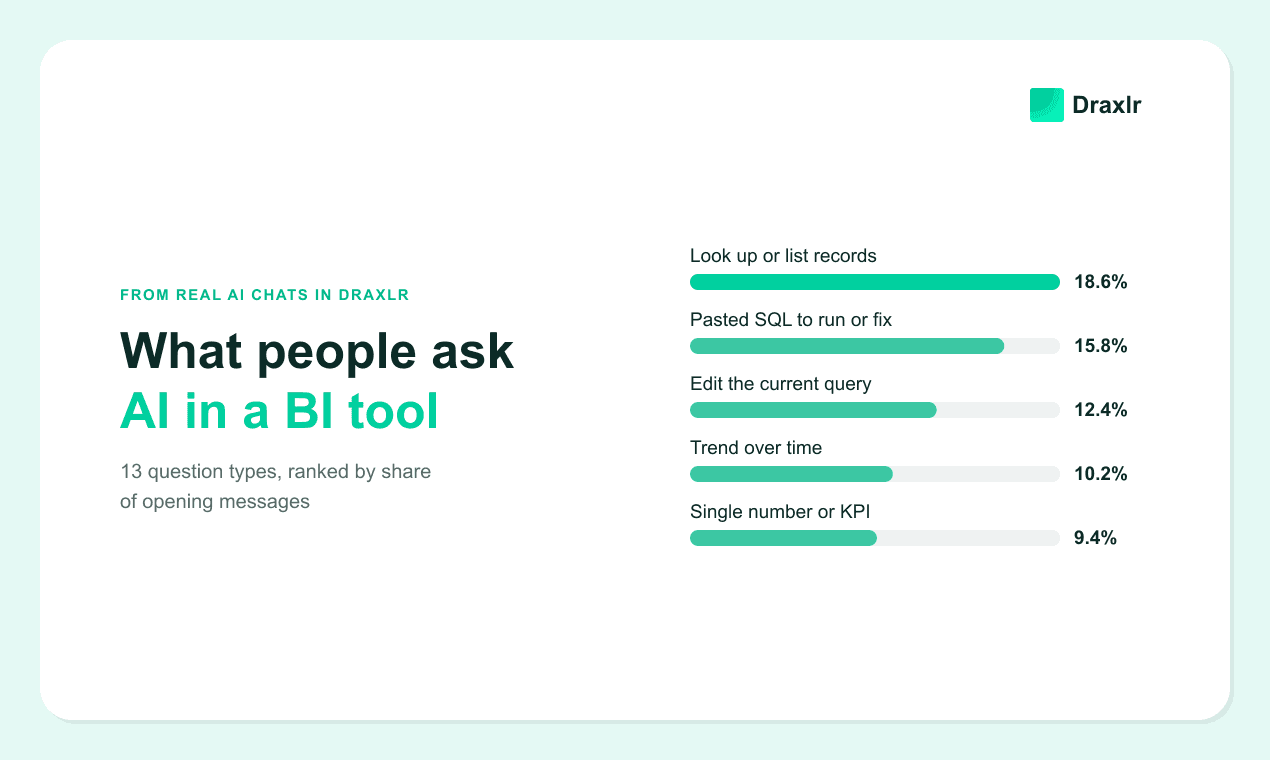
Yes, and plenty of people use it that way. In Draxlr's AI chat, 15.8% of opening messages were pasted SQL to run, fix or optimize, and another 12.4% asked to change a query or chart already on screen (Draxlr, 2026). There are three ways to start from existing work.
Point the AI at a saved query or chart
Mention an existing saved query, or a chart on a dashboard, by name:
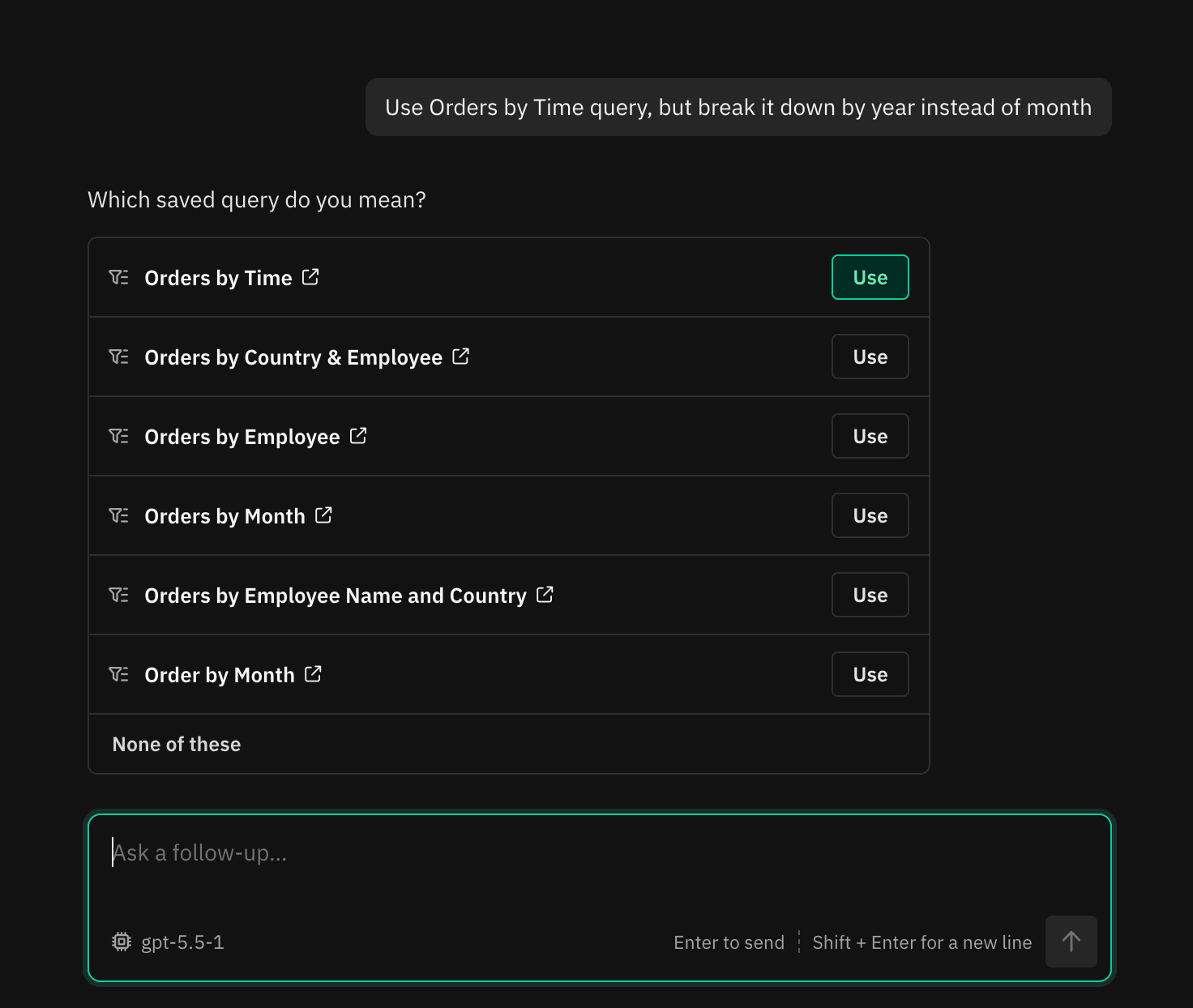
- "Use Orders by Time query, but break it down by year instead of month"
- "Copy the axes of the Revenue by Month chart on my Sales dashboard"
Draxlr AI searches your saved queries, asks "Which saved query do you mean?" and lists the closest matches. Click Use on the right one, or open it in a new tab first to check. If none fit, click None of these and ask again with the exact name. The answer then links back to the saved query it used.
Get help from AI inside the SQL editor
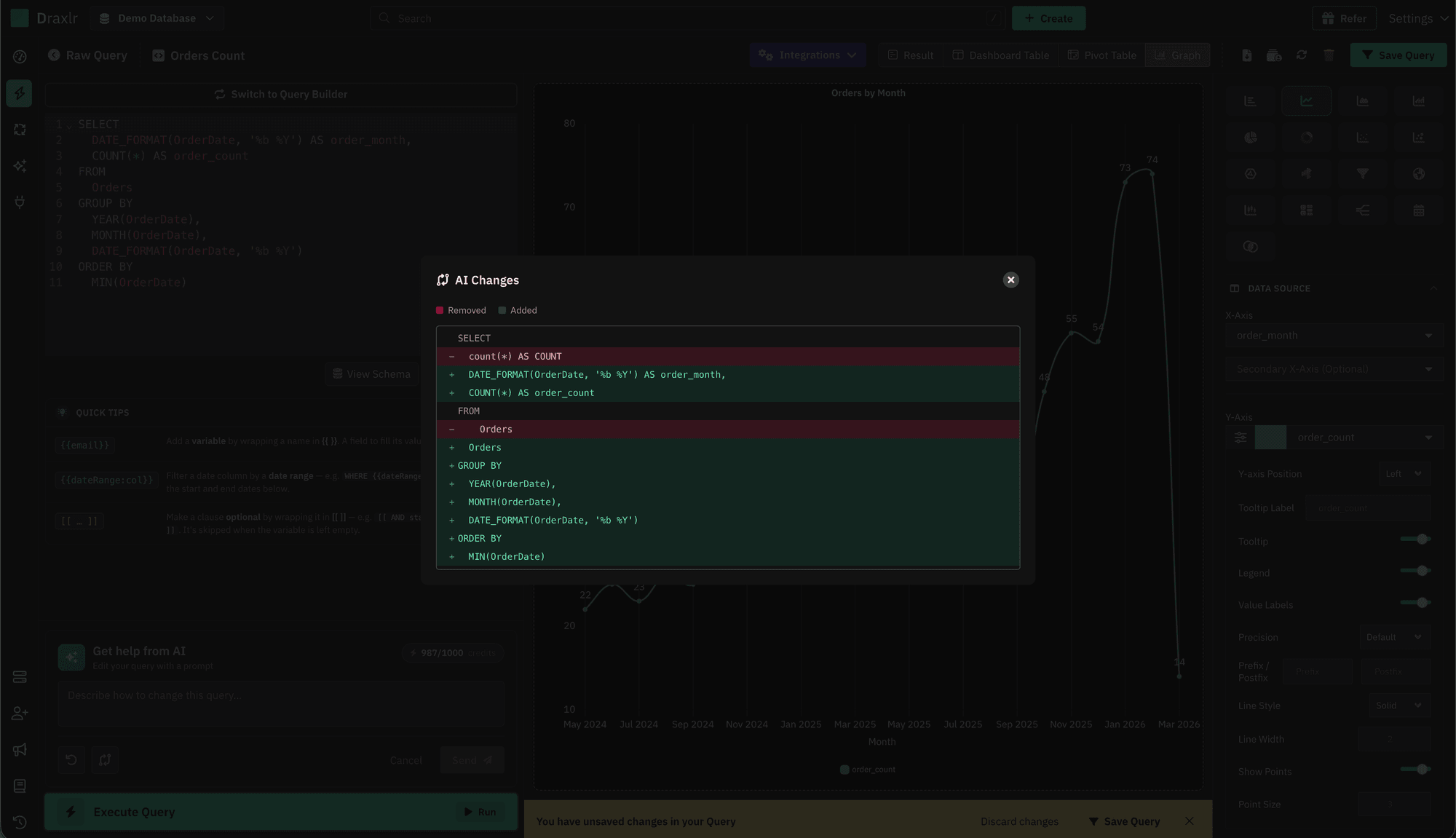
Writing SQL yourself? In the SQL editor, click Get help from AI and describe the change: "add a filter for paid orders", "group this by week". The AI rewrites the query and the visualization. Click View AI changes to see a line-by-line diff of what it removed and added, and Revert to original query if you don't like it. In the screenshot, it turned a plain COUNT(*) of orders into an order count by month.
Edit a dashboard widget with AI
On a dashboard widget that was created with AI, open the widget menu and choose Edit with AI. Then describe the change, such as "show this as a line chart" or "only include paid orders". The option is hidden while dashboard filters are applied.
Can AI Build a Whole Dashboard From One Prompt?
It can. Ask Draxlr AI for a dashboard, or for several metrics at once ("create a dashboard with revenue, new customers and top products"), and it builds a whole dashboard instead of a single query. It drafts up to 20 items with a layout, and this can take about a minute.
Each item is a saved query, so you can open any of them and check the SQL the same way you did above. If the queries use variables, Draxlr creates matching dashboard filters for you.
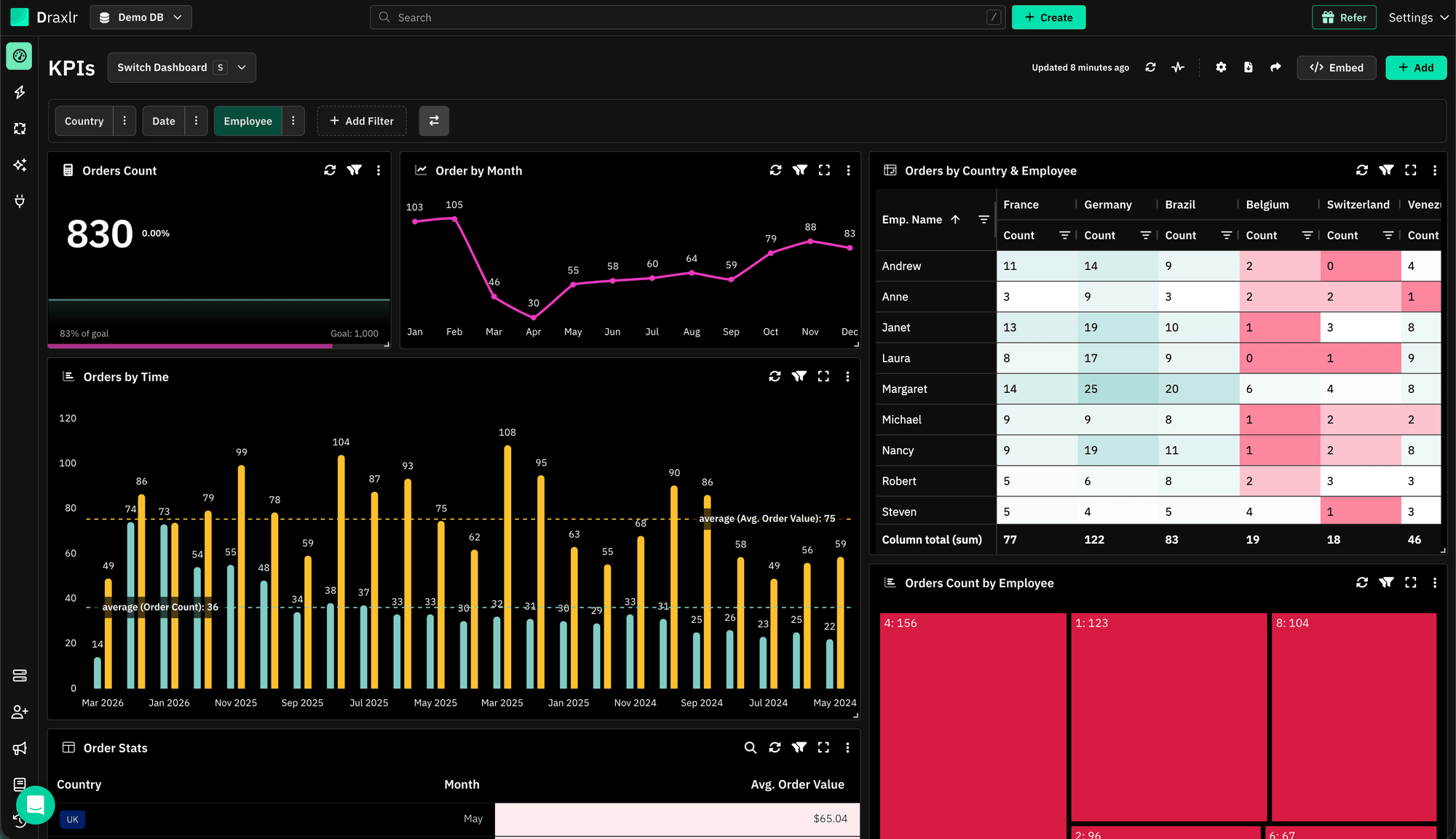
We cover the three ways to do this, and how to check what the AI built, in How to Build SQL Dashboards With AI. Once a dashboard is live, you can set up Slack or email alerts, share it with your team, or embed it in your own app.
Is It Safe to Let AI Write SQL Against Your Database?
It's safe when the tool and your database both limit what the AI can do. Draxlr checks every query the AI writes and runs only read statements. The AI also only sees the tables and fields your access level allows, minus anything hidden in Fine-tune AI.
For a hard guarantee, connect with a read-only database user. Then the database refuses any write no matter what the SQL says. Draxlr's own checks are application-level, and a database role is the boundary that can't be talked around.
Safety is half of it. The other half is correctness, and that's on you. In the 2025 Stack Overflow survey, 66% of developers named "AI solutions that are almost right, but not quite" as their top frustration with AI tools (Stack Overflow, 2025). An almost-right query doesn't throw an error. It just returns a believable wrong number. So before you put a result on a dashboard:
- Read the assumption sentence at the end of the answer.
- Open the SQL tab and check the joins, the filters and what's being counted.
- Compare one number against a source you already trust.
For more on picking a tool with these guardrails, see What Is an AI SQL Tool? and our list of the best AI SQL tools.
Can You Generate SQL From Claude or ChatGPT Instead?
Yes. The Draxlr MCP server lets AI assistants like Claude, ChatGPT and Cursor list your databases, read the schema, run read-only SQL, save queries and add them to dashboards. It's useful when you already live in one of those assistants and want answers from your own data.
MCP is on every plan. Lite includes 50 MCP requests a month, and higher plans have no monthly limit. Our Postgres MCP server guide and Claude walkthrough cover the setup.
Try It on Your Own Database
The best test of an AI SQL generator is a question you already know the answer to. Connect your database, ask it, and compare. If the number's off, open the SQL tab and see why. Then add one definition to Train AI and ask again.
Every new account starts with a 7-day free trial, and no credit card is required. See the AI feature page for a short interactive demo.
Connect your DatabaseFAQs
Do I need to know SQL to generate queries with AI?
No. You can ask in plain English, and Draxlr AI writes the SQL, runs it and answers with the real numbers. Knowing a little SQL helps you check the result, though. Every answer has an SQL tab, so you can read what ran, edit it and run it again.
How do I check that AI-generated SQL is correct?
Read the last sentence of the answer first, because Draxlr AI states any assumption there, like "This uses the last 12 months." Then open the SQL tab and check the joins, the filters and what's being counted. Finally, compare one number against a report you already trust.
Which databases can Draxlr AI generate SQL for?
Draxlr AI works with the SQL databases Draxlr connects to. These include PostgreSQL, MySQL, SQL Server, MariaDB, Supabase, Neon, PlanetScale, CockroachDB, ClickHouse, Snowflake, BigQuery, Redshift, Databricks and YugabyteDB. The AI writes SQL for the database you're connected to.
How many AI credits does a question use?
One AI credit is one message to the AI, such as a question that generates a SQL query. Credits reset every month: Lite includes 50, Premium 100 and Power 300. You can add 200 more credits for $10 a month.
Can Draxlr AI fix or change SQL I already wrote?
Yes. Paste the SQL into the AI chat, or open it in the SQL editor and click Get help from AI. Describe the change you want, and the AI rewrites the query. In the SQL editor, View AI changes shows a line-by-line diff, and you can revert to the original query.
- Vivek
About the author

Vivek is a coder and the founder of Draxlr who cares deeply about building good products. He works at the intersection of AI, SQL, dashboards, and embedded analytics, with a strong focus on making complex data workflows feel simple, useful, and fast for real teams.
If you have questions about anything in this guide, or want to compare options for your specific stack, you can email Vivek at vivek@draxlr.com, try Draxlr free, or reach out directly through the Draxlr team.